
DNS Records: What They Are and How to Check Them
DNS (Domain Name System) records are essential for controlling how traffic flows to and from your domain. They determine things like where your website is hosted, how emails are delivered, and how third-party services verify your domain. Knowing how to view and manage DNS records helps ensure your setup is correct, troubleshoot issues, and confirm that changes have propagated properly.
Whether you’re launching a website or configuring email, checking DNS records ensures everything points to the right destination.
What Are DNS Records?
DNS records are entries that define how your domain functions. Each type of record has a unique role:
- A Record: Connects your domain to an IPv4 address.
- AAAA Record: Connects your domain to an IPv6 address.
- CNAME: Points one domain or subdomain to another.
- MX Record: Routes email to your mail server.
- TXT Record: Stores text-based data for purposes like SPF, DKIM, or domain verification.
- NS Record: Identifies the nameservers managing your DNS.
- SRV Record: Provides information about specific services and ports.
How to Check DNS Records
You can review your domain’s DNS records in several ways:
Through the tandohost.co.za Dashboard
- Log into your tandohost.co.za account. Login - TandoHost
- Navigate to View Details.

3. Select View Details next to your domain name.
4. Click Manage DNS to view or update records.
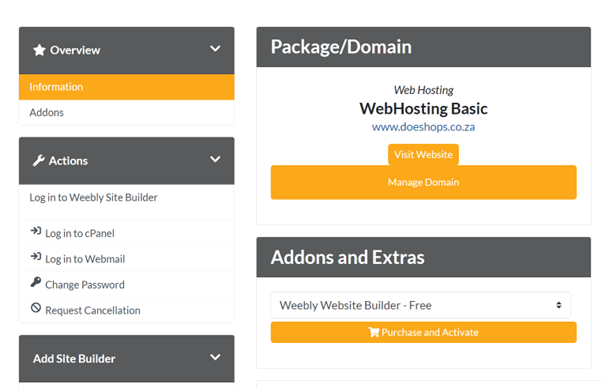
5. Use Add DNS Records to create new entries.
- DNS Lookup Tools
If you don’t want to log in to your hosting account, use online tools like:
Steps:
- Enter your domain name.
- Choose the DNS record type (A, MX, TXT, etc.).
- Click Search to see global results.
These tools are helpful for:
- Monitoring DNS propagation.
- Verifying email setup (SPF, DKIM, DMARC).
- Checking for misconfigurations.
- Using cPanel (via tandohost.co.za)
If your domain is hosted at tandohost.co.za:
- Log in to your account and access the Dashboard. Login - TandoHost
- Navigate to View Details or select Log in to cPanel.

3. In cPanel, find Zone Editor under the Domains section.
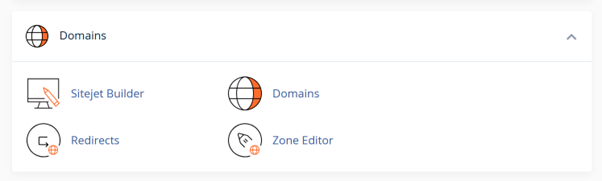
- Click Zone Editor, you will see a list of your domains. Click Manage next to the relevant domain.
You can view, add, or edit A, CNAME, MX, TXT, and other DNS records here.
These tools show direct results from authoritative servers and are useful for in-depth debugging.
Additional Tips & Common Issues
DNS Errors to Avoid
- Typos: Records like TXT/SPF are case-sensitive and must be exact.
- Missing MX/SPF/DKIM: These can cause email delivery failures.
General DNS Info
- Propagation Time: Changes can take 24–48 hours to update globally.
- Multiple Records: Ensure multiple MX or TXT entries don’t conflict.
- Name/Host Fields: Some systems require @ for the root domain; others need the full domain name.
- Third-Party DNS: If you use external DNS (e.g., Cloudflare), manage records there.
- TTL (Time to Live): Lower TTL before big changes for faster propagation.

