tandohost.co.za Introduces Domain Transfer Lock for All .za Domains
Tandobss.com is a Domain Transfer Lock for all .za domains, effective 1st April 2025. This applies to the full range of .za TLDs, including .co.za, .org.za, .web.za, and .net.za.
Historically, transfers for .co.za domains followed a different protocol. However, as of 31st March 2025, the .za registry (ZARC) announced that all .za domains can now be transfer-locked, similar to the security measures used for international domains like .com and .net.
Important Update: .co.za domains can now also be registered or renewed for up to 5 years.
With this update, tandohost.co.za will automatically *lock all .za domains (except those currently undergoing a transfer). Going forward, all new domain registrations and transfers will be automatically protected by Domain Transfer Lock.
What is a Domain Transfer Lock?
A domain transfer lock is a security feature designed to prevent unauthorized transfers of a domain name between registrars. Its primary purpose is to protect against domain hijacking, ensuring that only authorized individuals can initiate legitimate transfers.
How it Works
When a domain is locked, transfer requests are automatically blocked by the registrar. To move the domain, the owner must unlock it through their service provider’s control panel.
Note: The tandohost.co.za Client Portal already supports locking and unlocking domains, giving customers full control over their domain security.
How to Add a Domain Transfer Lock
With the new update, transferring.co.za domains require unlocking them first.
Important: .co.za domains do not require an authorization code—only the lock and unlock options are needed.
Steps to Lock/Unlock a Domain:
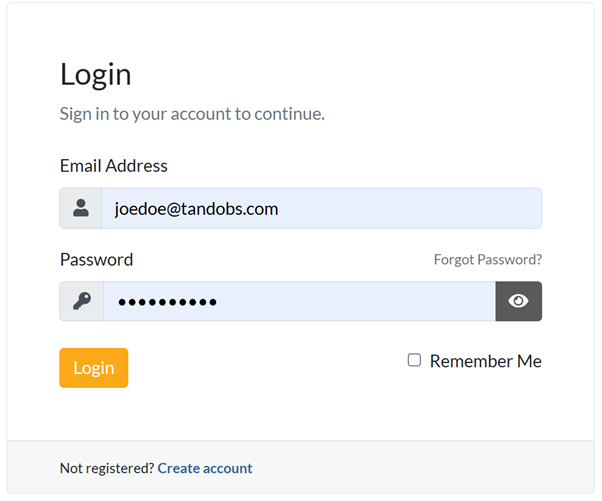
- Log in to your tandohost.co.za account. Login - TandoHost
- Enter your username and password, then click Sign In.
3. Access your Manage Account dashboard.
4. Click Domains to see your domain list.
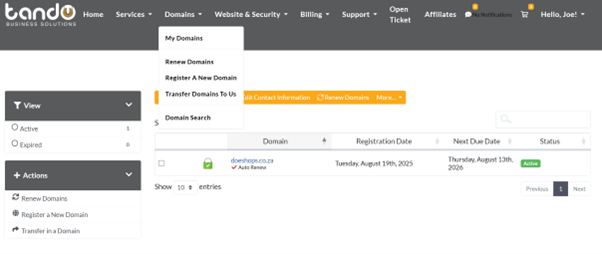
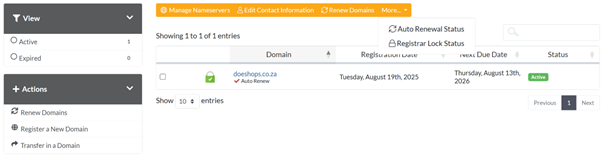
5. Click the More button for the domain you want to modify.
6. Click Lock/Unlock Domain to change the lock status.
Additional Information
EPP Status Codes:
- Domains with an active lock will display clientTransferProhibited in the WHOIS database.
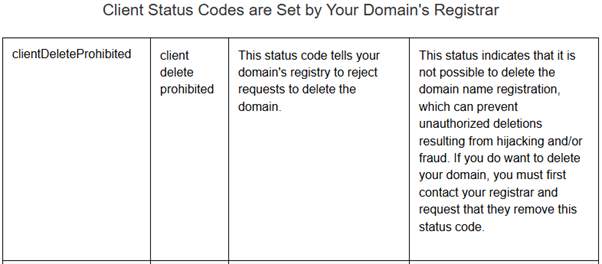
- Other server-side status codes, such as clientDeleteProhibited, are set by your domain’s registry to ensure additional protection.