
Accessing Your Email in cPanel
Checking and managing your email in cPanel is straightforward and applies to all hosting packages that include email accounts. Whether you want to read incoming messages, send emails, adjust settings, or create new accounts, cPanel offers a complete set of tools to handle all your email needs. You can access and manage your email accounts directly from the cPanel dashboard.
How to create your email via tandohost.co.za client page.
Follow these steps to access your email in cPanel, regardless of your hosting plan:
- Log in to your tandohost.co.za Account client area. Login - TandoHost
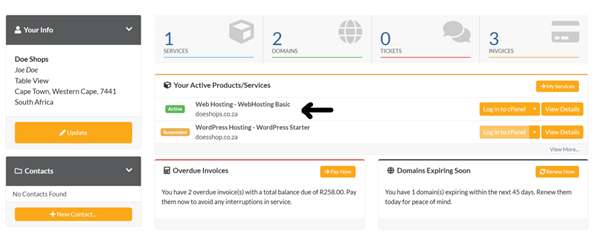
- From the Your Active Products/Services, select your hosting plan
3. Scroll down till you see Quick Create email.
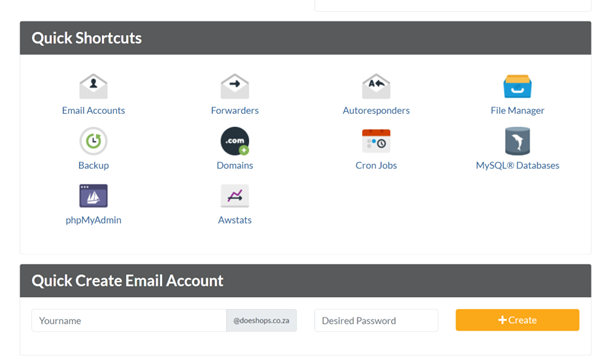
4. Clear the email that is automatically added and enter only your Name and desired password, and click +Create

How to Access Email in cPanel
Follow these steps to access your email in cPanel, regardless of your hosting plan:
- Log in to your tandohost.co.za Account. Login - TandoHost
- From the Your Active Products/Services, select your hosting plan, then click Login to cPanel.
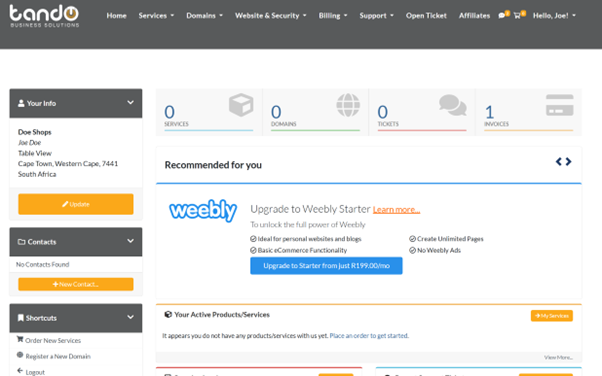
Access Email in cPanel – Manage Web Hosting
- Click the Login button next to Control Panel to open your cPanel dashboard.
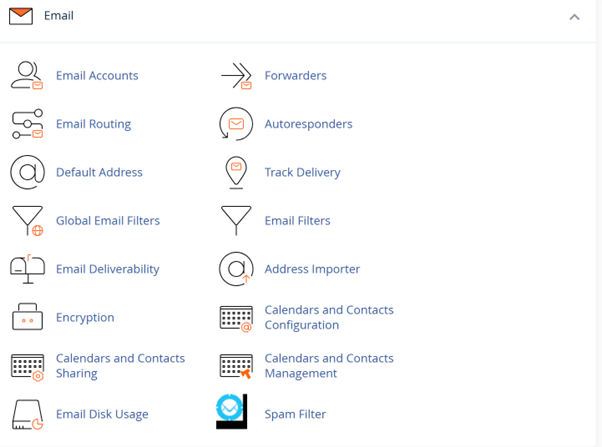
- Scroll down to the Email section and select Email Accounts.
Access Email in cPanel – Login to cPanel
- Locate the email account you want to access from the list of available addresses.
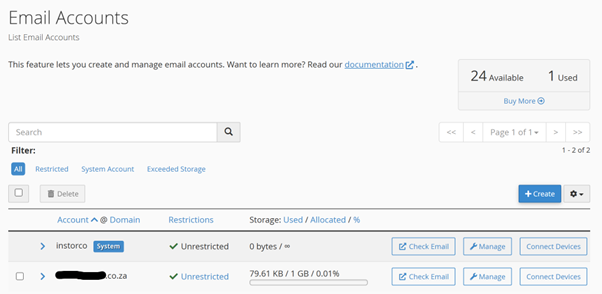
- Click Check Email beside your chosen email account.
- Pick a Webmail client, such as Roundcube, to open your inbox.
You can now read, send, and manage your emails directly.
Additional Information
Managing Email Accounts in cPanel
After accessing your email accounts in cPanel, you have several management options:
- Email Apps: Set up your accounts on desktop or mobile applications like Outlook, Apple Mail, or Samsung Mail. Use the Connect Devices option in cPanel for step-by-step configuration instructions.
- Configuration Details: cPanel provides all necessary settings, including incoming/outgoing mail servers, ports, and encryption options. Automatic configuration scripts are available for popular clients.
- Webmail Access: Webmail clients like Roundcube allow browser-based email access from any device, without additional installations.
- Email Forwarding & Autoresponders: Forward emails to another inbox or set up automatic replies for vacations, confirmations, or other notifications.
- Email Filters: Organize incoming messages, block spam, or automatically sort emails into folders based on sender, subject, or keywords.
Email Account Security
Use unique, strong passwords for every email account to prevent unauthorized access. Weak or reused passwords put all your accounts at risk.
- Strong passwords should include uppercase & lowercase letters, numbers, and special characters (#@?*!).
- You can update or reset passwords via the Manage option next to the specific email account.
tandohost.co.za Email Hosting
tandohost.co.za supports both IMAP and POP3 protocols, giving you flexibility in how emails are stored or synchronized.
- Each account has a storage limit displayed in the Email Accounts section.
- Exceeding this limit may cause emails to bounce back or prevent sending new messages.
Updating MX Records
If emails are not sending or receiving correctly, verify your MX records in cPanel’s Zone Editor.
- MX (Mail Exchanger) records are DNS entries that direct email traffic to the correct mail servers.
- Incorrect MX records can result in undelivered or flagged emails.
- The Zone Editor also allows you to manage A records, CNAMEs, and other DNS settings.
Logging into Your tandohost.co.za Account
- Visit the tandohost.co.za Account Login page. Login - TandoHost
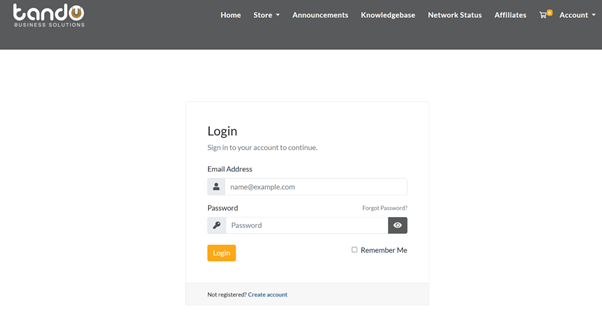
- Enter your Email and Password.
- Click Sign In to access your account.

