
How to Remove an Email Account from Your iPhone
- Open your Settings app on your iPhone.
- Scroll down and tap Mail, Contacts, Calendars.
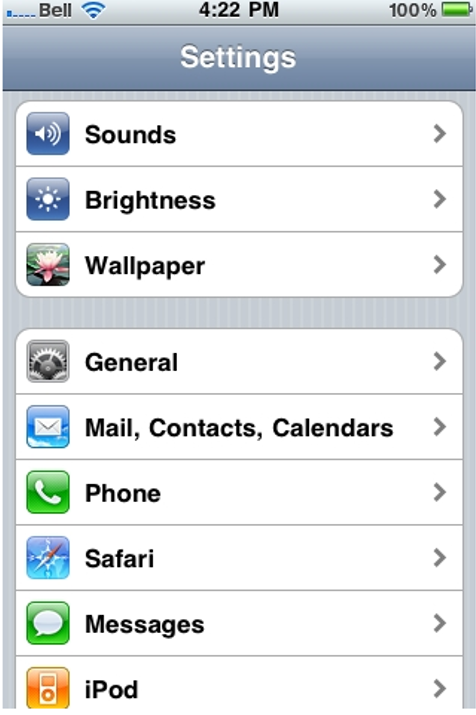
Delete an Email Account - iPhone - Mail, Contacts, Calendars
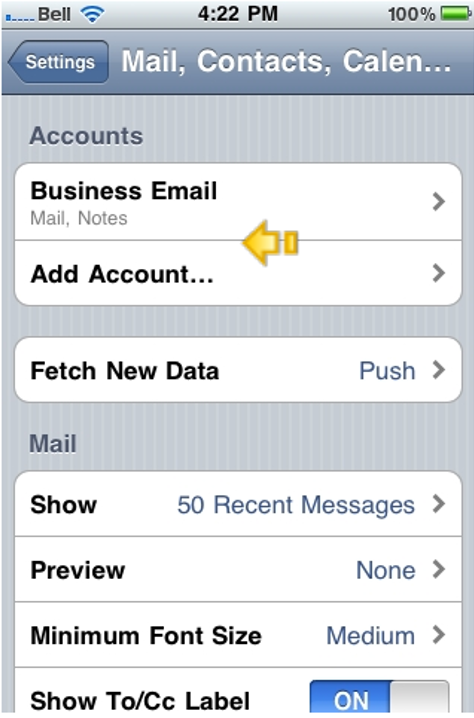
3. Choose the email account you wish to remove.
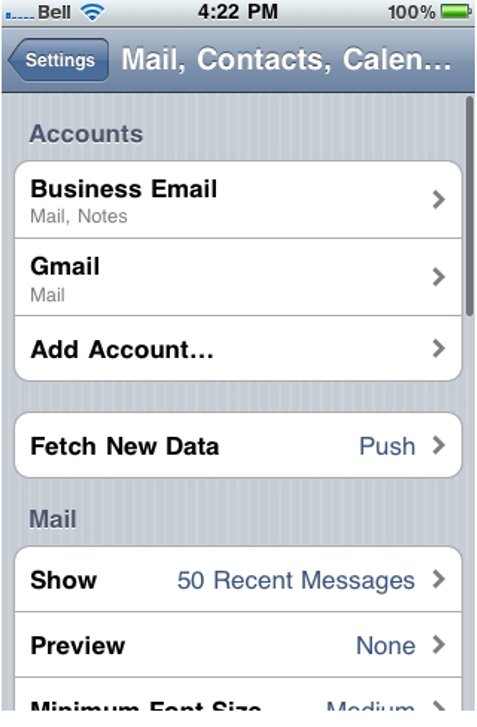
Delete an Email Account - iPhone - Select Email Account
4. Tap the red Delete Account button at the bottom of the screen.
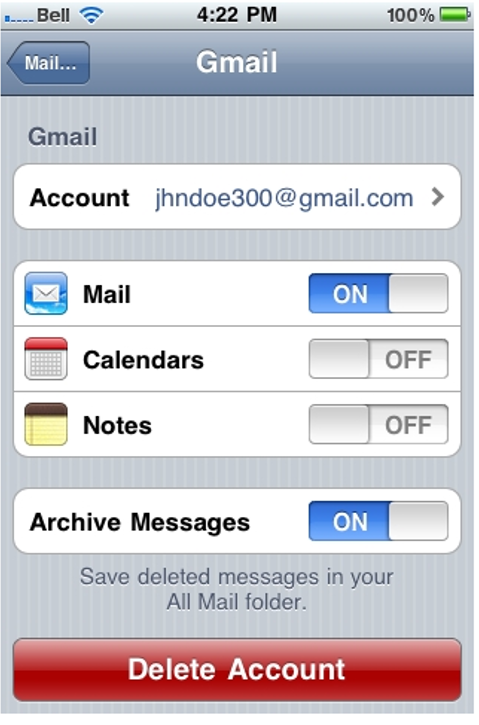
Delete an Email Account - iPhone - Delete Account
5. Confirm the deletion by pressing the red button again.
Note: Removing the account will also delete all emails stored on your iPhone for that account.
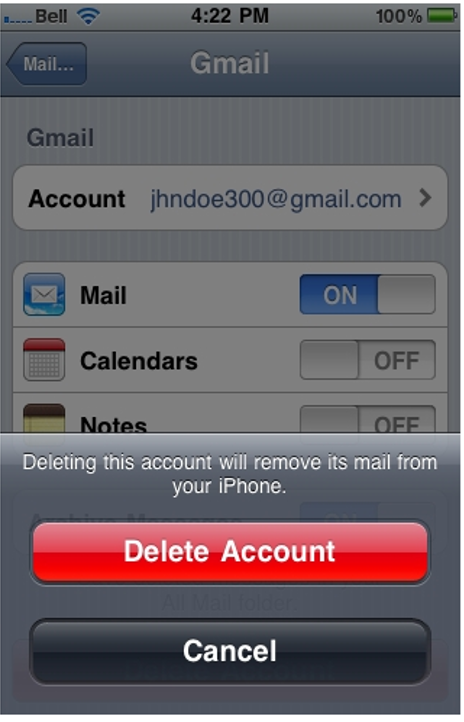
Delete an Email Account - iPhone - Confirm Deletion
And that’s it! The selected email account has been removed from your iPhone and will no longer appear in your accounts list.
Delete an Email Account - iPhone - Email Account Deleted
Now you know how to successfully delete an email account from your iPhone.

