
Effortlessly Set Up Your Email in Outlook 2016 or Microsoft 365
Managing your emails directly from your desktop has never been easier. Whether you use POP or IMAP, this step-by-step guide will walk you through setting up your email account in Outlook 2016 or Microsoft 365, enabling you to send, receive, and organize your messages efficiently. By following these instructions, you can streamline your email setup and make Outlook your central hub for emails, calendars, and other essential communications.
How to Set Up an Email Account in Outlook 2016 or Microsoft 365
This guide assumes your email account has already been created via your Control Panel.
- Launch Outlook 2016
- Open Outlook on your computer.
- Click File in the top-left corner.
- From the dropdown menu, select Account Settings > Account Settings.
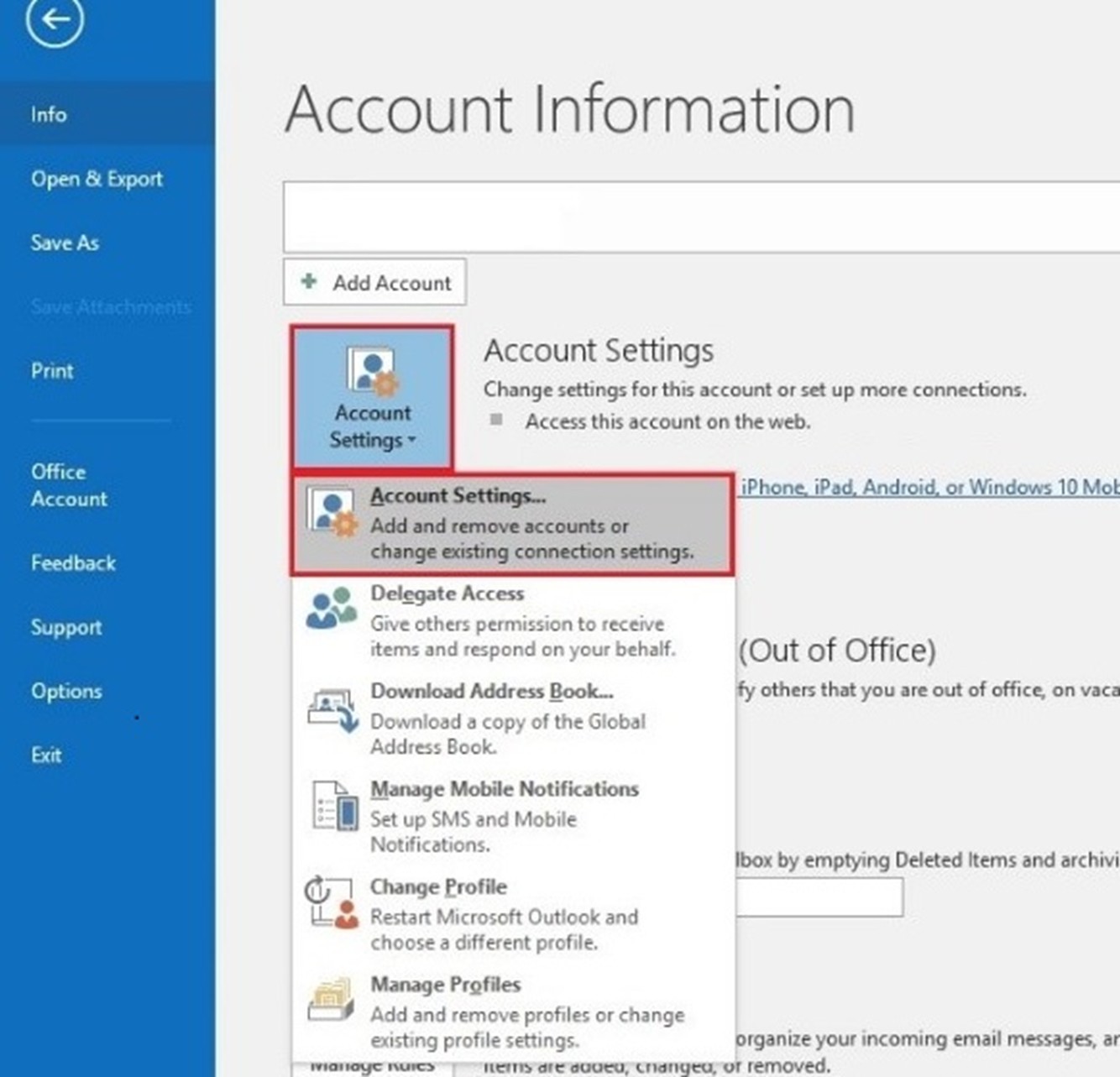
- Add a New Email Account
- In the Account Settings window, click New to start adding a new email account.
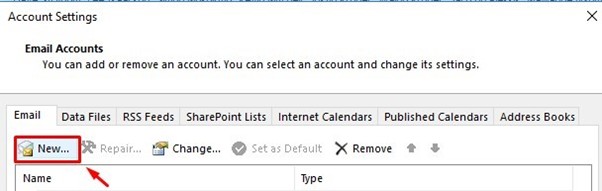
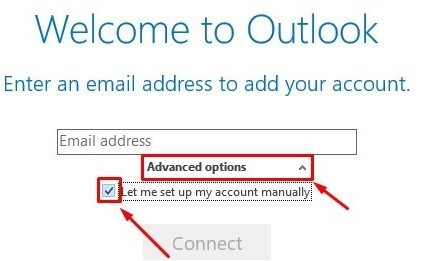
- Enable Manual Setup
- Click Advanced Options and check Let me set up my account manually.
- Choose your account type: IMAP or POP.
Tip: IMAP is ideal if you access your email from multiple devices, while POP is better if you want emails downloaded to a single device.
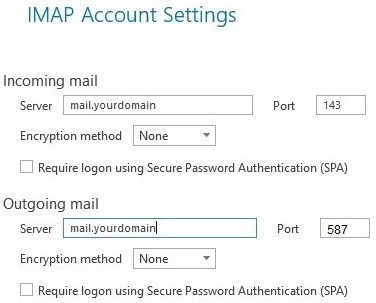
- Enter Your Account Details
- Incoming Mail Server: Replace mail.domainname with your domain name.
- Use Port 143 for IMAP or Port 110 for POP.
- Outgoing Mail Server: Use Port 587 for both IMAP and POP.
- Complete the Setup
- Click Next after entering your server details.
- Enter your email password when prompted and click OK.
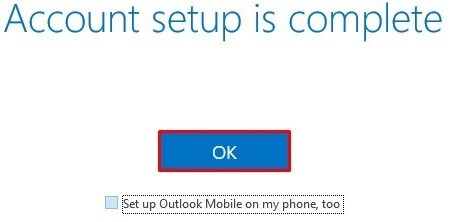
- Once Outlook confirms successful setup, your email is ready to use.
Additional Information
POP vs IMAP
- IMAP: Keeps emails synced across all your devices.
- POP: Downloads emails to one device and may remove them from the server, ideal for single-device management.
Email Hosting Configuration
- Ensure your server settings are accurate, including port numbers, SSL/TLS options, and server names. Incorrect settings may prevent sending or receiving emails. Contact your hosting provider if unsure.
Synchronization Settings
- IMAP users can adjust sync frequency and folder settings under:
File > Account Settings > [Your Account] > Change
Troubleshooting Tips
- Verify server settings, email address, and password.
- Ensure your internet connection is active.
- If setup fails, remove the account and try again.
- For persistent issues, consult Outlook’s help documentation or contact your email provider.
Version-Specific Tags:
- Outlook 2016
- Microsoft 365 Outlook
- Outlook 2016 Setup
- Office 365 Email Setup

