
Using IMAP to configure your email in Apple Mail enables seamless email management across multiple devices. Unlike POP, which downloads messages to a single device, IMAP keeps emails on the server and synchronizes them across all your devices. This setup is perfect if you want consistent access to your inbox from anywhere.
Follow this guide to set up your email account in Apple Mail using IMAP (Internet Message Access Protocol).
How to Set Up an Email Account Using IMAP on Apple Mail
Before starting, ensure your email account is already created in your Tandobss.com Control Panel.
Add a New Account
- Open the Apple Mail app on your Mac.
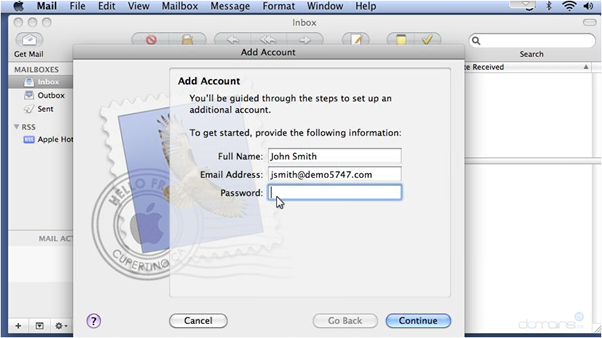
- Go to File > Add Account.
- Enter your Full Name as you want it displayed.
- Enter your Email Address.
- Input your Password and click Continue.
6. Select IMAP as the account type.
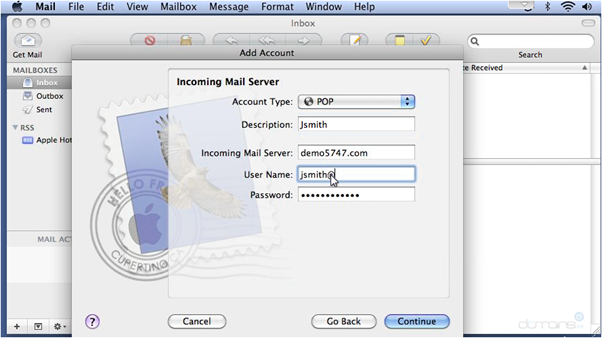
Configure Incoming Mail Server
- Add a Description for the server (e.g., Work IMAP Server).
- Enter the Incoming Mail Server provided by your host (e.g., mail.example.com).
- Enter your Username and Password for the incoming server.
4. Click Continue.
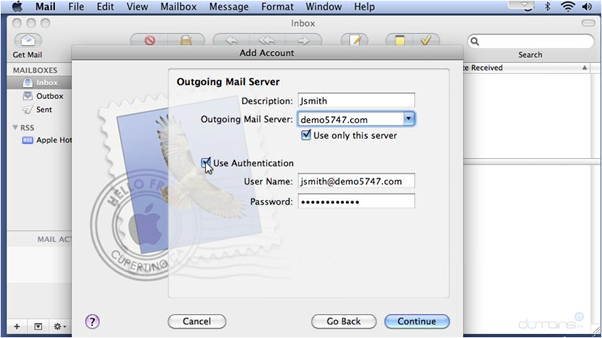
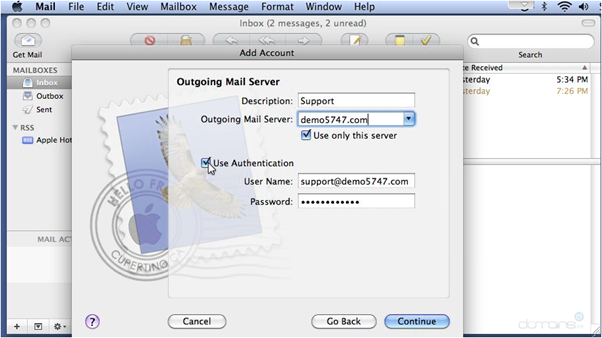
Set Up Outgoing Mail Server
- Add a Description for the outgoing server (e.g., SMTP Server).
- Enter the Outgoing Mail Server address provided by your host.
- If authentication is required, enable Use Authentication.
- Click Continue.
Review and Access Your Mailbox
- Verify all the information entered.
- Click Create to complete the setup.
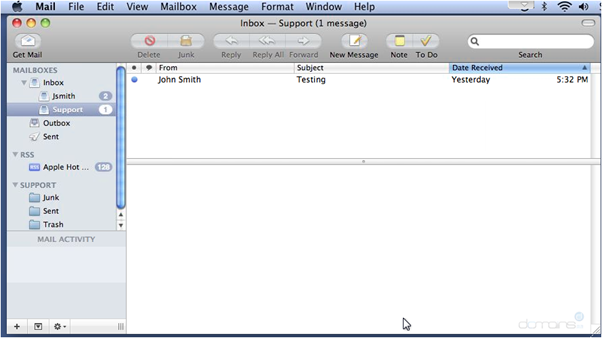
Your mailbox will now appear in Apple Mail, with all server-stored messages accessible.
Additional Information
IMAP vs. POP
- IMAP: Keeps emails on the server and synchronizes them across devices. Ideal for users accessing email from multiple locations.
- POP: Downloads emails to a single device, which can make multi-device access difficult.
Email Hosting Settings
Ensure you use the correct server settings from your provider, including incoming/outgoing server addresses, ports, and security protocols (SSL/TLS). Incorrect settings may prevent sending or receiving emails.
Troubleshooting Tips
- Double-check server settings for accuracy.
- Ensure a stable internet connection.
- Re-enter your email and password to correct any typos.
- If problems persist, contact your email hosting support team.

