
Setting up email on Apple Mail using POP is a straightforward process that allows you to manage your messages efficiently. POP (Post Office Protocol) downloads emails from the server directly to your device, making it ideal if you prefer to store your messages locally instead of keeping them on the server. This guide walks you through the steps to configure your email account on Apple Mail so you can send and receive emails seamlessly.
How to Set Up Email Using POP on Apple Mail
Before starting, ensure you have logged in and set up your email account in your hosting Control Panel.
Adding a New Email Account
- Open the Apple Mail app on your Mac.
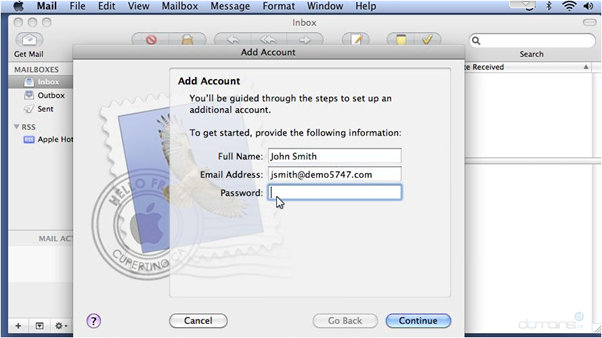
- In the Menu Bar, click File → Add Account.
- Enter your Full Name as you want it displayed on outgoing emails.
- Enter your Email Address.
- Input the Password associated with this email and click Continue.
Setting Up POP for Your Account
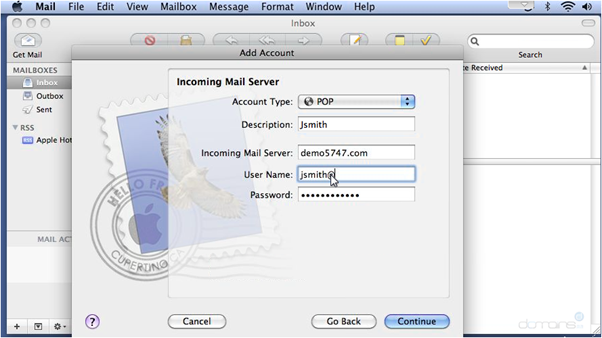
- Choose POP as the account type.
- Enter a Description for the incoming mail server (e.g., “Work Email”).
Configuring the Incoming Mail Server
- Enter the Incoming Mail Server details provided by your host (e.g., mail.example.com or your domain name).
- Input your User Name (typically your full email address) and click Continue.
Configuring the Outgoing Mail Server
- Enter a Description for the outgoing mail server (e.g., “SMTP Server”).
- Input the Outgoing Mail Server information supplied by your host.
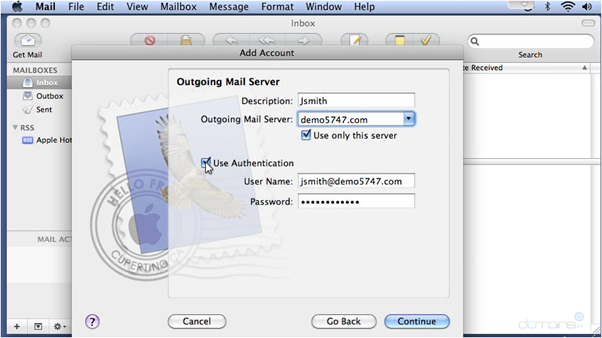
3. If your host requires authentication, check Use Authentication and click Continue.
4. Review all the information and click Create to complete the setup.
Once finished, your mailbox will appear in Apple Mail, allowing you to view and manage all messages downloaded from the server.
Additional Information
POP vs. IMAP
POP downloads emails to your device, while IMAP keeps them on the server and synchronizes across multiple devices. Use IMAP if you access your email from several devices.
Email Hosting Settings
Verify the server settings provided by your email host. Incorrect settings can prevent successful access to your email.
Troubleshooting
If issues arise, double-check your server details for typos and ensure your internet connection is stable.
Security Considerations
Enable two-factor authentication (2FA) for extra security, requiring both your password and a verification code to sign in.
Managing Multiple Accounts
You can manage multiple email accounts on your Mac easily. All accounts appear in the Mail app, allowing you to switch between Inboxes and manage emails efficiently.
Organizing Your Inbox
Take advantage of Apple Mail’s organizational tools—create folders, set up filters, and flag important messages to keep your inbox tidy.

