
Accessing your email, managing messages, and staying connected anywhere is quick and effortless when you set up your email account in the Samsung Email app. This app supports a variety of providers, including Gmail, Outlook, Yahoo!, and custom email addresses via IMAP, POP, or Microsoft Exchange—perfect for both personal and professional accounts.
How to Set Up an Account on the Samsung Email App
This step-by-step guide walks you through setting up your Samsung Email app, allowing you to start sending and receiving messages without delay.
- Open the Samsung Email app on your device.
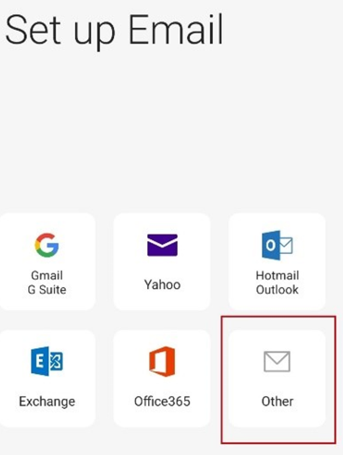
- On the “Setup Email” screen, tap Other
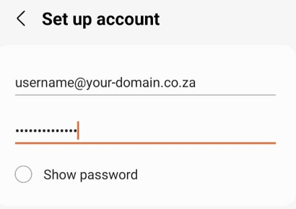
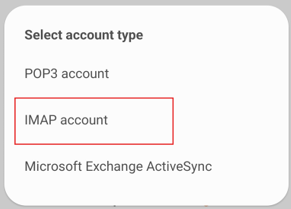
3. Enter your Email Address and Password, then tap Manual Setup and choose IMAP account.
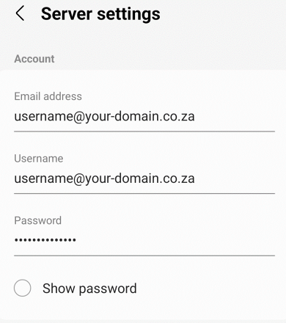
You’ll now see the server settings screen. Fill in the following details:
Account Information
- Email Address: e.g. username@your-domain.co.za
- Username: e.g. username@your-domain.co.za
- Password: Your email password
Note: Replace username@your-domain.co.za with your actual email address.
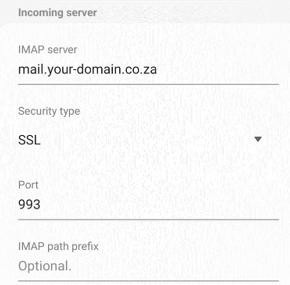
Incoming Server (IMAP)
- IMAP Server: mail.your-domain.co.za
- Security Type: SSL
- Port: 993
- IMAP Path Prefix: Leave blank
Outgoing Server (SMTP)
- SMTP Server: mail.your-domain.co.za
- Security Type: SSL
- Port: 465
- Require Authentication to Send Emails: Enabled (On)
- Enter your email address and password again when prompted.
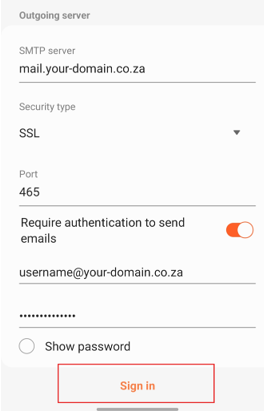
Once you’ve entered all the details, tap Sign In. Your Samsung Email app is now ready to send and receive messages.
Additional Information
Before You Begin
Make sure you have the following:
- Email Address & Password – The account you want to connect.
- Incoming & Outgoing Server Settings – For your-domain.co.za, these are listed above.
- Security Type – Usually SSL for both incoming and outgoing.
IMAP vs POP
- IMAP: Keeps your emails synced across all devices (best for multiple devices).
- POP: Downloads emails to one device only and does not sync changes.
For work accounts, you may also use Microsoft Exchange to sync email, contacts, and calendars.
After Setup
You can:
- Turn on push notifications for instant alerts.
- Adjust sync frequency (every 15 minutes, hourly, etc.) to save battery.
- Assign different tones for personal and professional accounts.

