
How to Set Up an Email Account in Outlook Express for your-domain.co.za
Manage and read your email@your-domain.co.za emails directly from your desktop or laptop by setting up Outlook Express. This guide walks you through the process step-by-step, ensuring a smooth and accurate configuration.
In addition to the basic setup, you’ll learn about important server settings, such as POP3, IMAP, and SMTP, as well as tips for resolving common issues, including failed connections, incorrect login details, and sync errors. A properly configured Outlook Express account can help you stay organised, improve productivity, and streamline email handling.
Steps to Set Up an Email Account in Outlook Express
Before You Begin
Make sure you have already created your email account in the tandohost.co.za Control Panel.
- Access the Accounts Menu
- Launch Outlook Express on your computer.
- Click Tools in the top menu and select Accounts from the dropdown list.
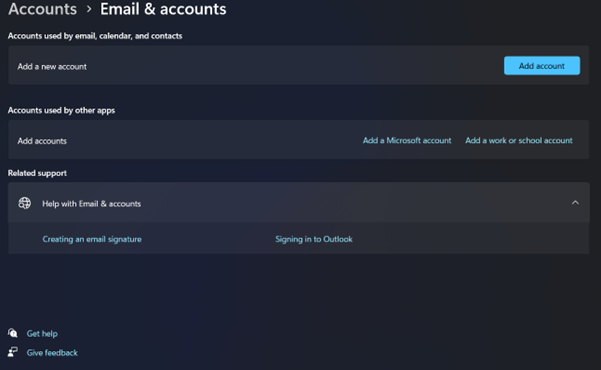
Note: If the Internet Connection Wizard opens automatically, skip to Step 3.
- Add a New Mail Account
- In the Internet Accounts window, click Add, then choose Mail to launch the Internet Connection Wizard.
- On the Your Name page, type the name you want to appear on outgoing emails, then click Next.
- On the Internet Email Address page, enter your full Tanddobs.com email address (e.g., user@your-domain.co.za), then click Next.
- On the Email Server Names page, select POP3 for the incoming server type.
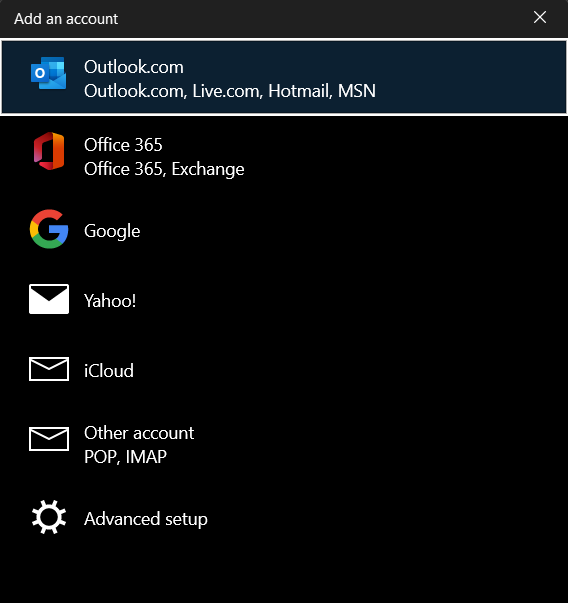
- Enter Incoming & Outgoing Mail Server Details
- Incoming Mail Server (POP3): mail.tandohost.co.za
- Outgoing Mail Server (SMTP): Use the SMTP server address provided by your Internet Service Provider (ISP) (e.g., smtp.your-isp.com).
- On the Internet Mail Logon page, enter your full email@your-domain.co.za email address as the account name, and type in your email password.
- Double-check your details for accuracy, then click Next.
- Complete the Setup Process
- Click Finish to complete the setup.
- Your tandohost.co.za email account is now ready to use in Outlook Express.
Additional Information
Server Settings
- Incoming Server: mail.your-domain.co.za
- Outgoing Server: Provided by your ISP (contact them if unsure).
Troubleshooting Tips
- Recheck your email address and password for typos.
- Make sure incoming and outgoing server details are correct.
- Ensure your computer is connected to the internet.
- If emails aren’t sending, enable outgoing server authentication in your account settings.

