
If you’d like to read and manage your Gmail messages from your Apple devices, setting up your account on your iPad is quick and simple. Once done, you’ll be able to stay connected and handle emails wherever you are. This step-by-step guide walks you through the entire process so you can start using Gmail on your iPad without hassle.
- Setting Up Gmail on iPad
Before you begin, make sure your Gmail account is already active and ready to use.
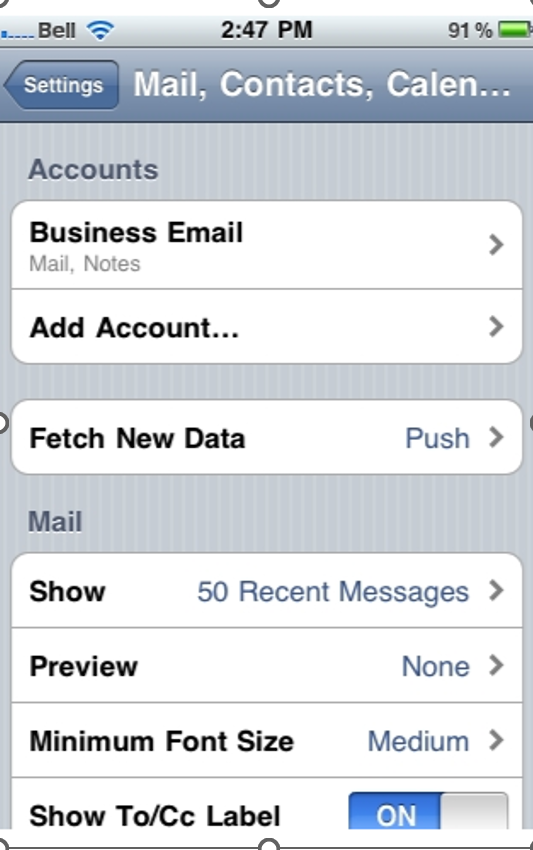
- Adding Your Gmail Account
- Open the Settings app from your iPad’s Home Screen.
- Scroll down and tap Mail.
- Select Accounts (or “Contacts” and “Calendars” on some versions), then choose Add Account.
- From the list of providers, select Gmail.
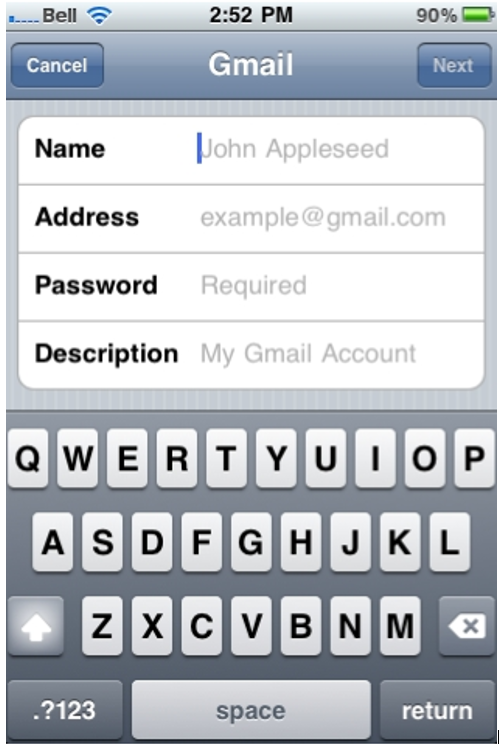
- Enter your Name, Email Address, and Password for your Gmail account. Double-check for accuracy.
6. A default description (usually “Gmail”) will appear—you can rename it if you prefer. Tap Next.
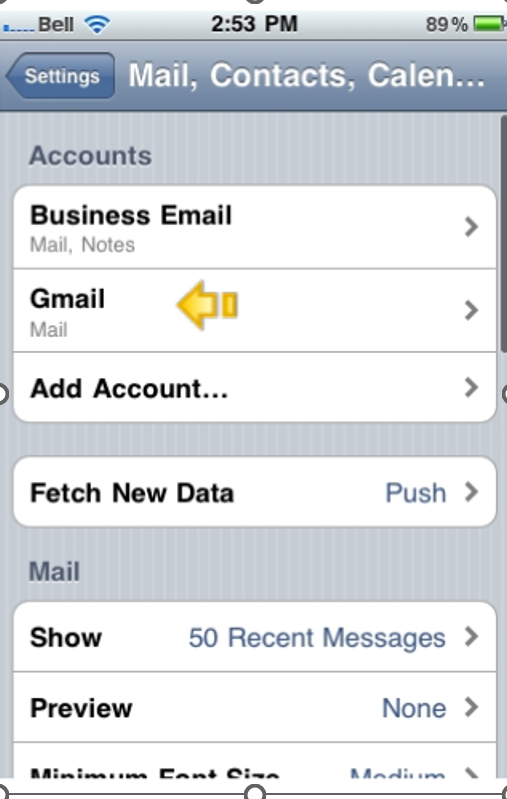
7. Tap Save. Your iPad will now sync with your Gmail account, making your emails available in the Mail app.
- Accessing Your Emails
- Press the Home button to return to the Home Screen.
- Open the Mail app.
- If you have multiple accounts, select your Gmail account from the list to view its inbox.
- Use built-in features to manage your mailbox—create folders, set filters, and mark important messages for quick access.
- Syncing & Customization Options
To manage what’s synced to your device:
- Go to Settings > Mail > Accounts > [Your Gmail Account].
- Enable or disable syncing for Mail, Contacts, Calendars, or Notes based on your preferences.
- Managing Notifications
Stay up-to-date by setting your preferred notification style:
- Go to Settings > Notifications > Mail.
- Choose alert styles and sounds for new emails so you never miss important messages.
- Troubleshooting Setup Issues
If your Gmail account won’t connect:
- Verify your email address and password.
- Check that your iPad is connected to the internet.
- Re-enter your login details if needed.
- If problems continue, visit the Google Help Center or Apple Support for further assistance.

