
Accessing Your WordPress Admin Dashboard
The WordPress Admin Dashboard is the control center for managing and customizing your website. From publishing content and updating themes to configuring settings and installing plugins, this dashboard is your go-to tool for maintaining site functionality and appearance.
Whether you’re new to WordPress or an experienced webmaster, knowing how to log in is essential for smooth site management. This guide walks you through the login process and explains why the dashboard is crucial for your WordPress hosting and overall website optimization.
This article complements our YouTube tutorial: “Access Granted! How to Login to Your WordPress Admin Dashboard.”
How to Log in to Your WordPress Admin Dashboard
- Login to Your tandohost.co.za Account
- Go to the tandohost.co.za Login Page. Login - TandoHost
- Enter your Email Address and Password.
- Click Sign In.
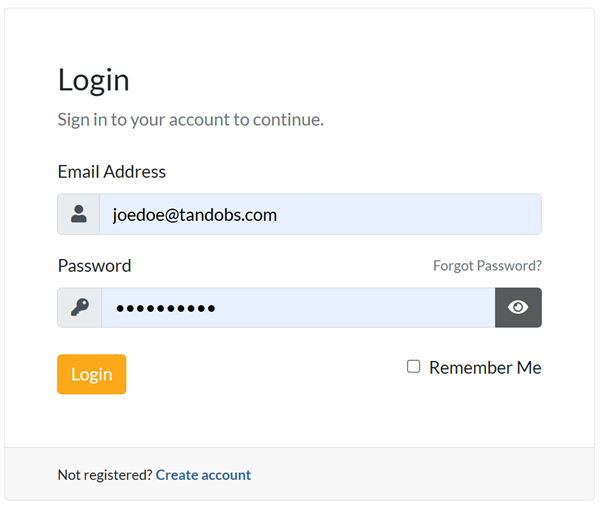
2. Under Product/Services, click Login next to WordPress.

- On the cPanel dashboard, select WP Toolkit or WordPress Management.
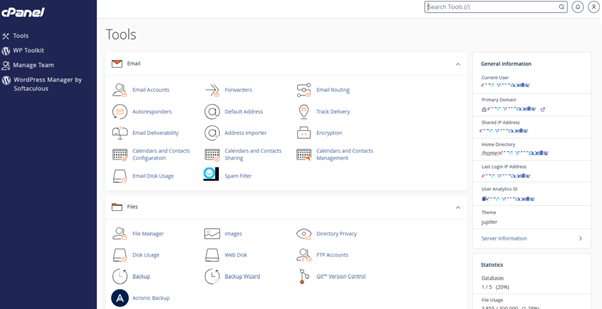
Access WordPress Online via cPanel
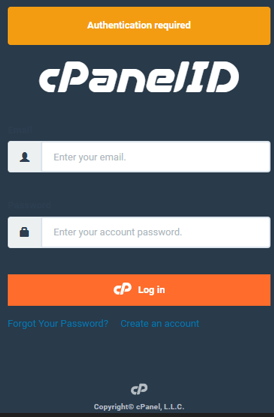
- Visit your cPanel login URL.
- Enter your email and account password, then click Log In.
- Once logged in, select WP Toolkit or WordPress Management from the right-hand menu.
- Login Directly via URL
- In your browser, go to:
- http://yourdomain.com/wp-admin or
- http://yourdomain.com/wp-login.php
(Replace yourdomain.com with your actual domain name.)
- Enter your WordPress Username and Password, then click Log In.
- You’ll be redirected to the WordPress Admin Dashboard where you can manage posts, pages, plugins, themes, and settings.
Troubleshooting Login Issues
- Forgot your password? Click Lost your password? on the login page and follow the reset instructions via email.
- Double-check your URL for typos and clear your browser cache if you experience issues.
- Try logging in from a different browser if necessary.
Security Tips
- Use a strong, unique password and change the default username.
- Enable Two-Factor Authentication (2FA) for added protection.
Why Accessing Your Dashboard Matters
From creating posts to updating plugins and monitoring site performance, the Admin Dashboard is where you:
- Create & Edit Content (posts, pages, media).
- Manage Themes & Plugins for customization and added functionality.
- Control User Roles & Permissions for team collaboration.
- Adjust Settings such as site title, permalinks, and SEO.
- Moderate Comments and engage with your audience.
- View Analytics & Reports to track performance.
- Update Software for security and compatibility.
- Backup & Restore your site.
- Configure Security Settings to protect against threats.

