
Adding a New Category in WordPress
Organizing your WordPress content is simple with WordPress’ built-in Category Management feature. Adding new categories can significantly improve how visitors navigate and experience your site. Categories allow you to group related posts together, making your content easier to find and more structured.
This guide will show you how to create categories in WordPress and assign posts to them, and it complements our YouTube tutorial:
WordPress Categories Made Easy: Organize Your Posts Like a Pro.
How to Add a New Category in WordPress
(Ensure you’re logged into your WordPress Dashboard before proceeding.)
- In the left-hand sidebar, hover over “Posts” and click “Categories”.
- This opens the Categories page where you can manage and add new categories.
Adding a New Category
On the Categories page, you’ll find a form on the left to create a new category.
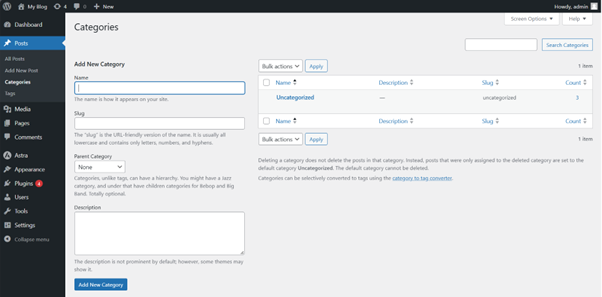
Fill in these fields:
- Name: The category name (e.g., “News” or “Recipes”).
- Slug: A URL-friendly version of the name (lowercase letters, numbers, and hyphens only).
- Parent Category: To make a subcategory, select a parent category from the dropdown. Otherwise, leave it as None.
- Description (Optional): Add a brief description. Some themes display this on category archive pages.
Once done, click “Add New Category” at the bottom.
Your new category will appear in the list on the right and will reflect in your blog’s sidebar or summary section.
Additional Information
Bulk Actions:
Delete multiple categories at once by selecting their checkboxes, choosing Delete from the Bulk Actions dropdown, and clicking Apply.
⚠ Always back up your site before bulk deleting.
Category Descriptions:
Some themes display category descriptions on archive pages. Adding descriptions gives visitors context about the type of posts they’ll find.
Customizing Category Pages:
Use your theme’s category template or a page builder plugin to customize category layouts. Advanced changes require PHP and theme development knowledge.
Category Widgets:
Add a Categories widget to your sidebar or footer for easier navigation.
SEO Tips:
- Use clear, keyword-rich category names.
- Avoid too many categories (use tags for niche topics).
- Stick to broad, meaningful categories for better site structure.
Logging in to Your tandohost.co.za Account
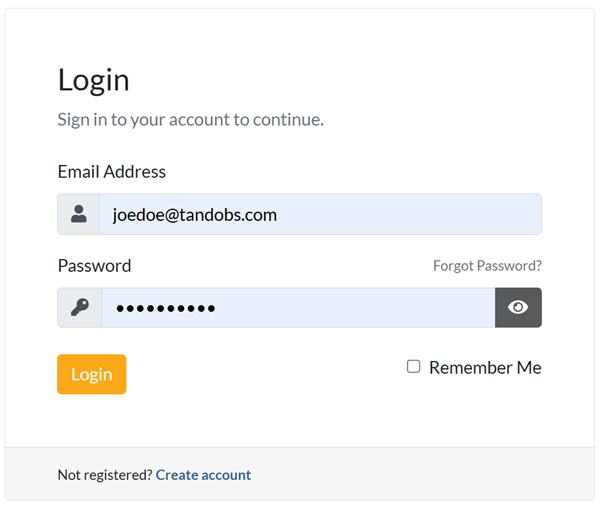
- Visit the tandohost.co.za Login page. Login - TandoHost
- Enter your Email and Password, then click Sign In.
Access WordPress via cPanel
- From Product/ Services, select your hosting plan.
- Click Login next to Control Panel.

- In cPanel, choose WP Toolkit or WordPress Management.
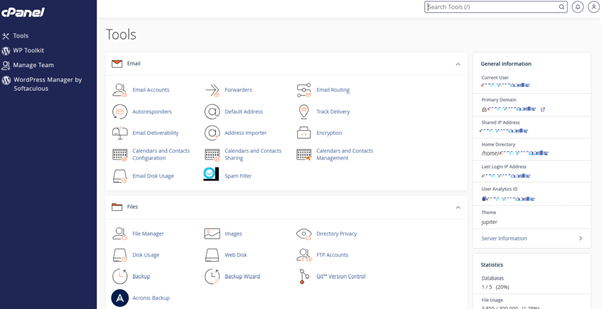
You’ll also find a WordPress icon under Popular Applications.
Access WordPress Online via cPanel
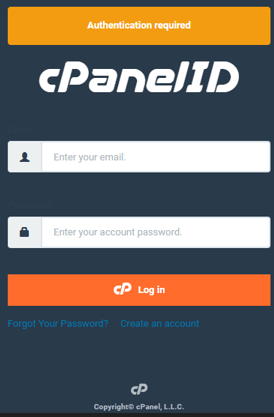
- Go to your cPanel login page and enter your credentials.
2. From the Dashboard, open WP Toolkit or WordPress Management.
That’s it! You’ve successfully added a new category and learned how to manage them like a pro.

