
Learning how to manually install a WordPress theme is especially valuable when working with custom or premium themes that aren’t available in the official WordPress repository.
Manually installing a theme gives you greater control over your website’s design and functionality, ensuring it aligns perfectly with your unique requirements. This article provides a step-by-step guide for installing a WordPress theme manually, assuming you are already logged in to your WordPress account.
How to Install a WordPress Theme Manually
Step 1: Download the Theme
- Obtain the theme file from the source. This is typically a .zip file.
- Save the .zip file to a location on your computer where you can easily locate it.
Step 2: Access the WordPress Dashboard
- Go to yourwebsite.com/wp-admin and log in with your username and password.
- From the left-hand menu, hover over Appearance and click Themes.
Step 3: Upload the Theme
- Click Add New at the top of the Themes page.
- Select Upload Theme.
- Click Choose File and locate the .zip theme file on your computer.
- Click Install Now to upload and install the theme.
Step 4: Activate the Theme
- After installation, click Activate to apply the theme to your website.
- Go to Appearance > Customize to tweak the theme settings to your preference.
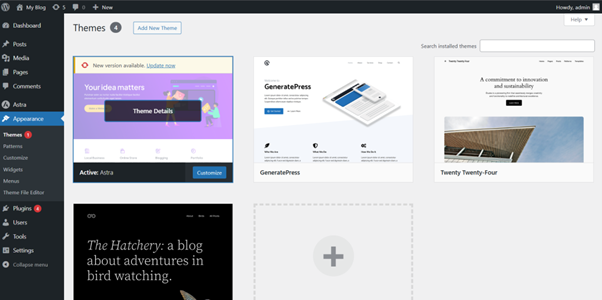
Step 5: Verify the Installation
- Visit your website to ensure the theme is applied correctly and everything displays as expected.
- If you encounter issues, consult the theme’s documentation or support resources.
Additional Information
Back Up Your Website
Always create a backup before making major changes, such as installing a new theme. This ensures you can restore your website if anything goes wrong.
Child Themes
If you plan to customize your theme, consider using a child theme. This allows updates to the parent theme without affecting your customizations.
SEO Optimization
Choose an SEO-friendly theme. A well-coded theme can improve your website’s search engine rankings.
Updates & Support
Select themes with strong developer support and regular updates. This ensures compatibility with the latest WordPress version and helps resolve issues quickly.
Performance
Some themes can slow down your website. Test the theme to ensure it doesn’t affect loading speeds.
Logging into Your WordPress Admin Dashboard via tandohost.co.za
Accessing WordPress via tandohost.co.za
Log in to tandohost.co.za Account
- Go to the tandohost.co.za Login Page. Login - TandoHost
- Enter your email and password, then click Sign In.
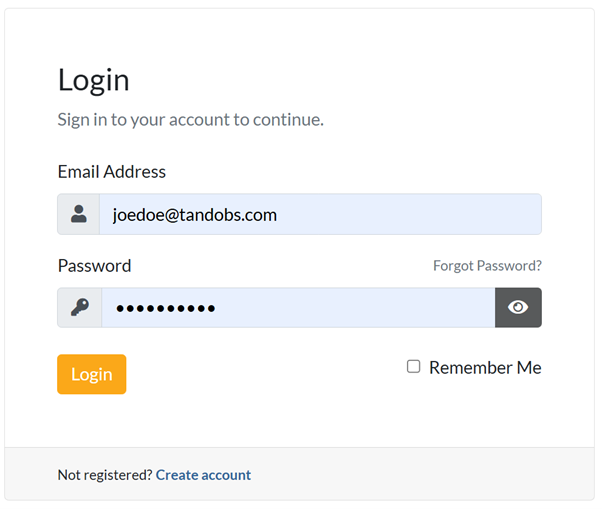
- Under Product/Services, click Login next to WordPress.

- On the cPanel dashboard, select WP Toolkit or WordPress Management.
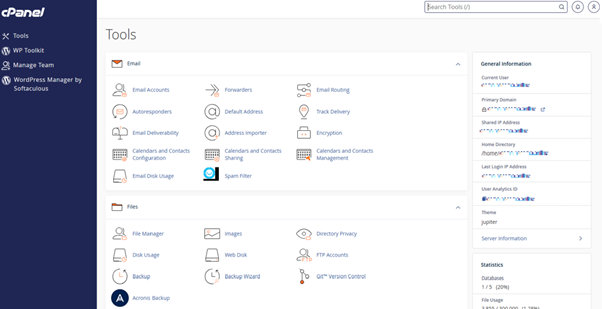
Access WordPress Online via cPanel
- Visit your cPanel login URL.
- Enter your email and account password, then click Log In.
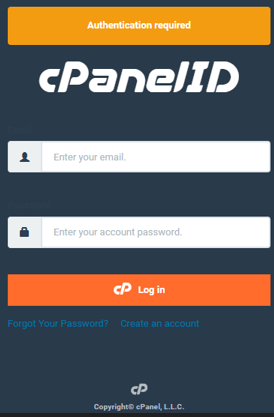
3. Once logged in, select WP Toolkit or WordPress Management from the right-hand menu.

