
WP Toolkit for cPanel: Your Complete WordPress Management Solution
WP Toolkit for cPanel is an all-in-one, powerful interface designed to simplify WordPress management. From a single dashboard, you can install, configure, update, and secure your WordPress sites with ease—no advanced technical skills required.
This guide will walk you through everything you need to know about using WP Toolkit for cPanel, available with our WordPress Hosting plans, so you can manage multiple sites efficiently.
Getting Started: How to Use WP Toolkit for cPanel
Before proceeding, make sure you’ve logged into cPanel through your tandohost.co.za account.
Step 1: Open WordPress Manager
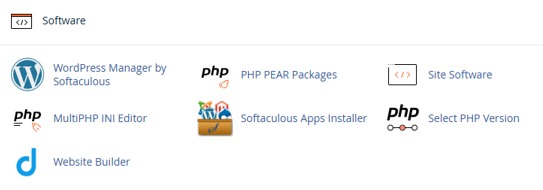
- From your cPanel Dashboard, scroll down to the Software section and click WordPress Manager by Softaculous.
Step 2: View Installed WordPress Sites
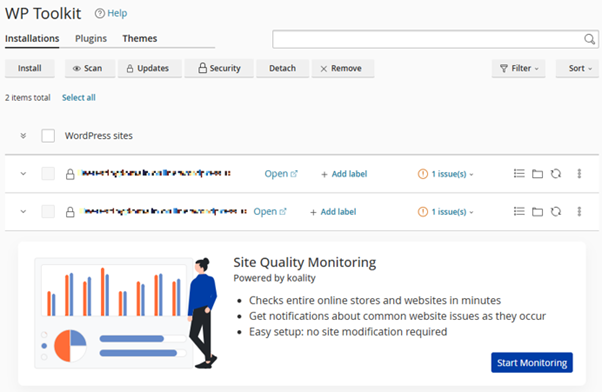
- The next page will display all your WordPress installations.
- Each site will show key details, such as WordPress version, installed themes, plugins, and current status.
Install WordPress Using WP Toolkit
- Navigate to the Softaculous App Library and click Install under WordPress.
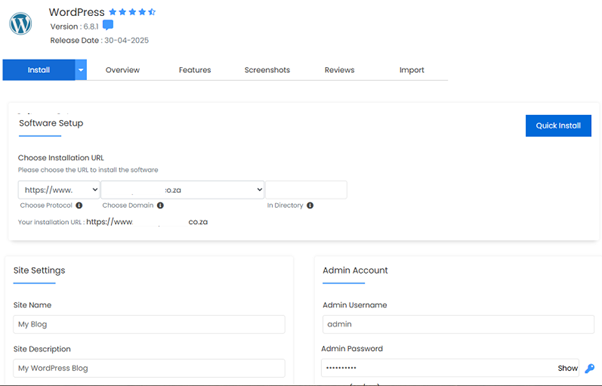
2. Under Software Setup, select your domain’s Protocol and Directory.
3. In Site Settings, provide your Site Name and Site Description.
4. Set up your Admin Username and Password (store them in a password manager).
5. Click Install to complete the setup.
Managing Existing WordPress Sites
- Update WordPress core, themes, or plugins with one click.
- Enable Maintenance Mode when making updates.
- Back up your site before changes or restore if needed.
- Clone your site or create a staging environment for safe testing.
- Manage plugins and themes directly from the WP Toolkit interface.
WP Toolkit for cPanel: Key Features
- One-Click Install: Set up WordPress in seconds.
- Central Dashboard: Manage all your WordPress sites from one location.
- Cloning & Staging: Create test environments with ease.
- Plugin & Theme Control: Bulk manage installations and updates.
- Automatic Updates: Schedule or apply updates manually.
- Security Hardening: Apply best-practice security measures in one click.
- Backup & Restore: Protect your site before making changes.
- Maintenance Mode: Activate with a single click during site changes.
- SSL Integration: Add HTTPS effortlessly.
- User-Friendly Interface: Ideal for beginners and pros alike.
- Perfect for Agencies: Manage multiple client sites from one dashboard.
- No Coding Required: Manage everything without FTP or terminal.
- Smart Updates (Premium): Automatically compare site versions before and after updates.
Accessing WordPress via tandohost.co.za
Log in to tandohost.co.za Account
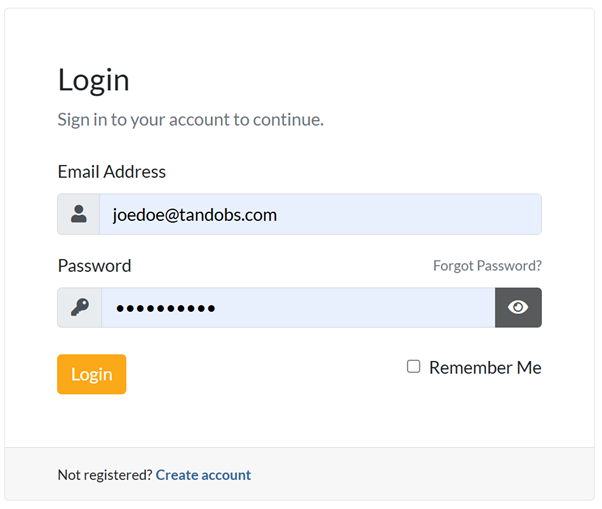
- Go to the tandohost.co.za Login Page.
- Enter your email and password, then click Sign In.
3. Under Product/Services, click Login next to WordPress.

4. On the cPanel dashboard, select WP Toolkit or WordPress Management.
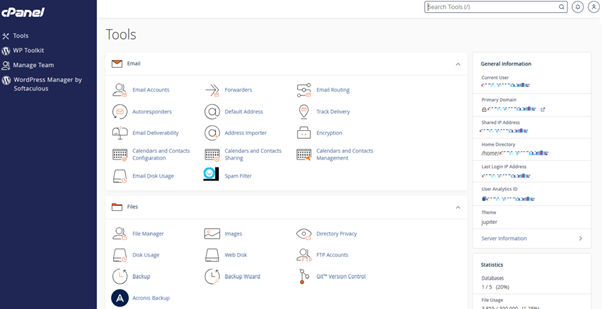
Access WordPress Online via cPanel
- Visit your cPanel login URL.
- Enter your email and account password, then click Log In.
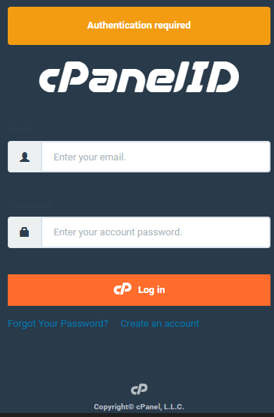
3. Once logged in, select WP Toolkit or WordPress Management from the right-hand menu.

