
How to Change Your WordPress Password – Complete Guide
This guide complements our YouTube tutorial linked below. Updating your WordPress password as soon as possible—especially if you are using the default one—is crucial for maintaining your website’s security.
In this article, you’ll learn how to reset your WordPress password whether you’ve forgotten it, suspect it’s been compromised, or simply want to strengthen your account security.
We’ve prepared a step-by-step process for changing your WordPress password. Please note that this guide assumes you are already logged into your WordPress Dashboard. For visual guidance, check out our video: Fortress WordPress: How to Change Your Password in Seconds.
How to Change a WordPress Password
Step 1: Log in to Your WordPress Dashboard
- Visit your WordPress login page (typically: yourdomain.com/wp-admin or yourdomain.com/wp-login.php).
- Enter your Username and Password to log in.
Step 2: Navigate to Your Profile Settings
- From the left-hand menu, go to Users → Profile (or Your Profile).
- Scroll down to the Account Management section.
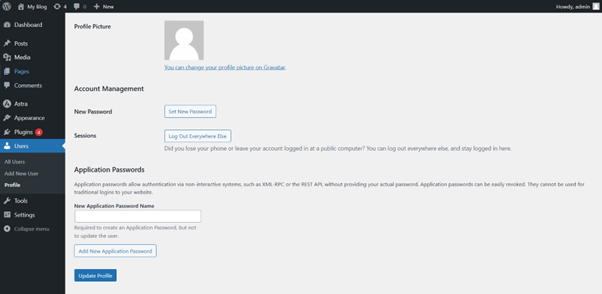
Step 3: Update Your Password
- Click Generate Password to create a strong password automatically.
- Alternatively, manually enter a new password in the New Password field (ensure it’s strong and secure).
- Scroll down and click Update Profile to save your new password.
WordPress Security Best Practices
- Enforce Strong Password Policies: Use plugins like WP Password Policy Manager or Force Strong Passwords to maintain strict password rules.
- Enable Two-Factor Authentication (2FA): Use plugins such as Wordfence or Google Authenticator for added security.
- Regularly Review User Roles & Permissions: Ensure users with multiple roles follow secure password practices.
- Educate Users: Provide guidelines for creating strong passwords and maintaining security.
- Maintain Regular Backups: Keep your WordPress site and database backed up to prevent data loss.
Common Security Issues & Solutions
- Account Lockouts: Security plugins may lock accounts after repeated failed login attempts. Adjust settings if necessary.
- Password Change Notifications: Notify users of any password updates to prevent confusion.
- Database Update Problems: If issues occur in phpMyAdmin, verify you’re editing the correct database and that the connection is stable.
Accessing WordPress via tandohost.co.za
Log in to tandohost.co.za Account
- Go to the tandohost.co.za Login Page. Login - TandoHost
- Enter your email and password, then click Sign In.
Access WordPress via cPanel
2. Under Product/Services, click Login next to WordPress.
3. On the cPanel dashboard, select WP Toolkit or WordPress Management.
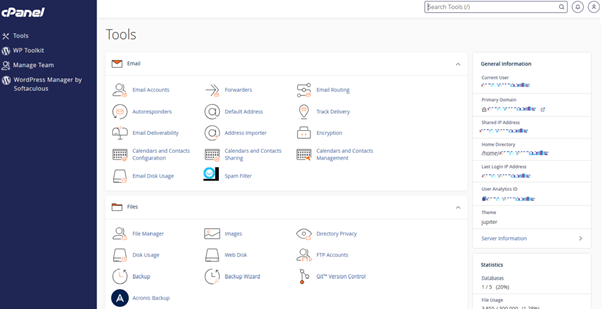
Access WordPress Online via cPanel
- Visit your cPanel login URL.
- Enter your email and account password, then click Log In.
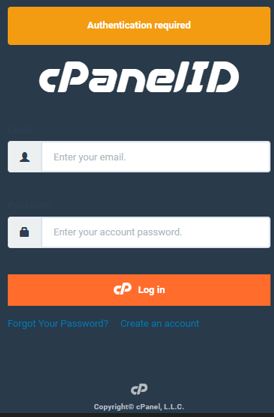
- Once logged in, select WP Toolkit or WordPress Management from the right-hand menu.

