
Changing your WordPress theme is a quick and effective way to transform the look and feel of your website. Whether you’re starting fresh or refreshing your current design, the process is simple and straightforward.
This step-by-step guide will show you how to install and activate a new WordPress theme to give your site a modern, polished look.
(Note: Ensure you are already logged in to your WordPress dashboard.)
How to Install a WordPress Theme
Step 1: Access the WordPress Dashboard
- Go to yourwebsite.com/wp-admin and log in with your credentials.
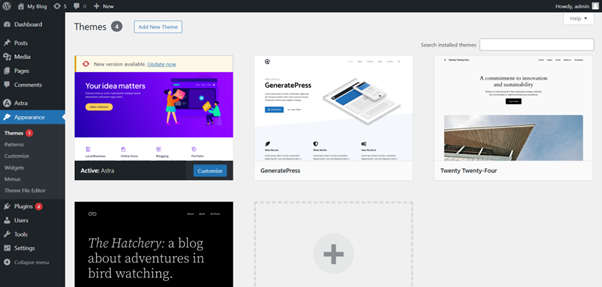
- In the left-hand menu, hover over Appearance and click Themes.
Step 2: Add a New Theme
- On the Themes page, click Add New (top of the page).
- Browse through Featured, Popular, or Latest themes, or use the search bar to find a specific theme.
Step 3: Install the Theme
- Preview the theme by clicking Preview before installing.
- When ready, click Install. WordPress will download and install it for you.
Step 4: Activate the Theme
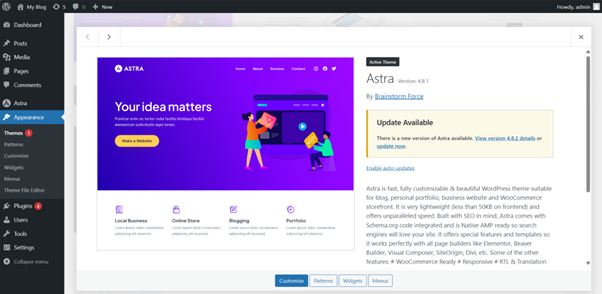
- After installation, click Activate to apply the theme to your site.
- To customize, go to Appearance > Customize and adjust settings to suit your needs.
Step 5: Upload a Theme (Optional)
- If you purchased a premium theme or downloaded one elsewhere, click Upload Theme on the Add Themes page.
- Click Choose File, select the theme’s .zip file, then click Install Now.
- Once uploaded, click Activate.
Additional Tips
- Backup Your Website: Always back up your site before installing a new theme.
- Use a Child Theme: If you plan on making custom changes, use a child theme to avoid losing edits during updates.
- SEO-Friendly Themes: Choose themes optimized for SEO.
- Regular Updates: Pick a theme that is well-supported and frequently updated.
- Performance Check: Ensure the theme doesn’t slow down your site.
Accessing WordPress via tandohost.co.za
Log in to tandohost.co.za Account
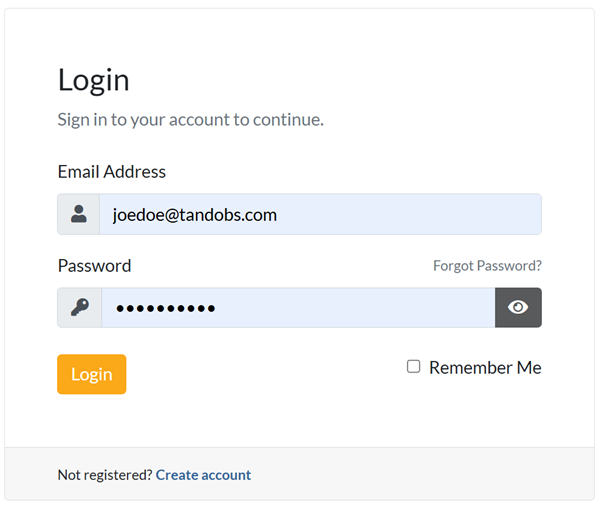
- Go to the tandohost.co.za Login Page. Login - TandoHost
- Enter your email and password, then click Sign In.
Access WordPress via cPanel
3. Under Product/Services, click Login next to WordPress.

4. On the cPanel dashboard, select WP Toolkit or WordPress Management.

Access WordPress Online via cPanel
- Visit your cPanel login URL.
- Enter your email and account password, then click Log In.
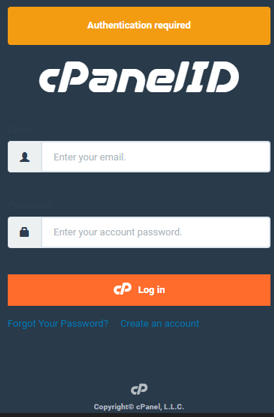
- Once logged in, select WP Toolkit or WordPress Management from the right-hand menu.

