
Many website owners choose to transfer their site to a new domain name. This typically occurs during a rebrand, when transitioning from a temporary development domain to a permanent one, or when choosing a name that more accurately represents their online business. Although the task might appear technical, cPanel makes the process straightforward, and it can be completed in just a few steps within your tandohost.co.za account.
How to Move a Website to Another Domain in cPanel
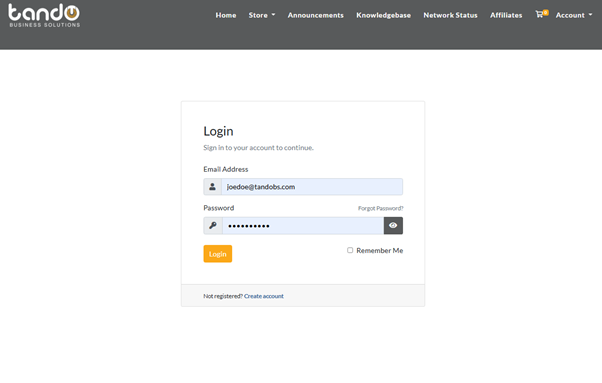
Step 1: Sign in to your tandohost.co.za account. Login - TandoHost
Step 2: From the left menu, click Manage Services and choose Web Hosting.
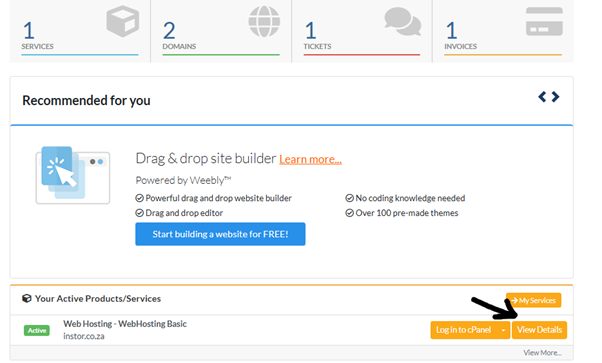
Step 3: Locate your domain name and click Manage.
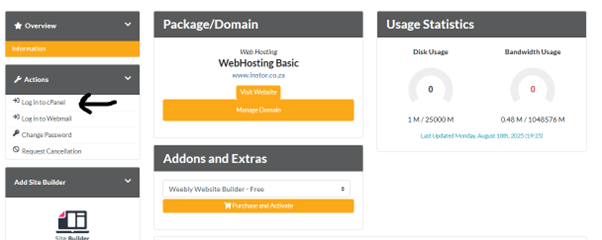
Step 4: Select Login next to Control Panel to open your cPanel dashboard.
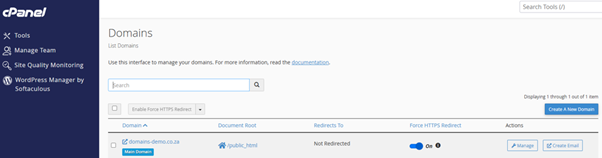
Step 5: In cPanel, scroll down to the Domains section and click Domains.
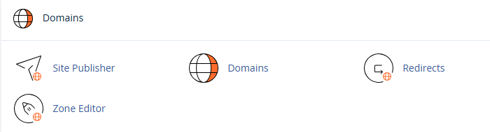
Step 6: Enter your new domain name and set the document root (or leave it as default).
Step 7: Click Add Domain to connect it to your hosting account.
Step 8: Go back to the cPanel main page and open File Manager under the Files section.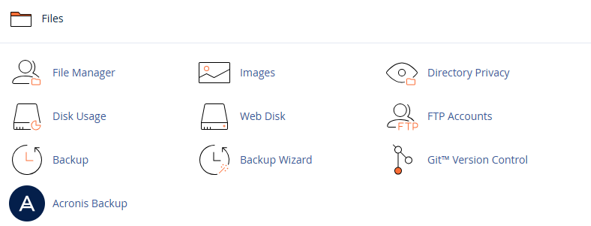
Step 9: Navigate to your current domain’s folder, for example:
/public_html/olddomain.com
Step 10: Select all the files and move them to the new domain folder, such as:
/public_html/newdomain.com
Step 11: Update any configuration files (e.g., wp-config.php for WordPress) to reflect the new domain name.
Step 12: If necessary, use phpMyAdmin to update database entries to the new domain.
Step 13: Add a 301 redirect in the .htaccess file under your old domain so visitors are automatically sent to the new one.
Step 14: Test your new domain to confirm everything is working properly.
Important Considerations
- Backup first: Always create a backup of your files and database before making changes.
- 301 redirects: Use them to preserve SEO rankings and avoid losing traffic.
- DNS settings: Confirm your new domain points to the correct hosting provider.
- Email accounts: Recreate any email addresses that were previously linked to the old domain.
- Internal links: Update links if you’re moving from a subdomain (e.g., blog.olddomain.com) to a root domain (e.g., newdomain.com).
- SSL certificate: Install one on your new domain to ensure secure browsing.
- User experience: Consider setting up a temporary 404 or maintenance page during the transition.
Why Move a Website to a New Domain?
- Rebranding: Reflect a new business name, a merger, or a refreshed brand identity.
- From Test to Live: Transition a website built on a temporary or staging domain to its official address.
- SEO Benefits: Choose a shorter, keyword-rich, or more relevant domain to improve rankings and visibility.
- Memorability: Short, simple, and catchy domain names are easier to remember, type, and share.
- Security Upgrade: Sometimes a move to a new domain coincides with switching from HTTP to HTTPS.

