
Adding a new website to your tandohost.co.za Web Hosting account using cPanel is straightforward. This allows you to manage multiple websites under a single hosting plan. In this guide, we’ll walk you through the process of linking a new domain, uploading your website files, and managing everything conveniently from your cPanel
Adding a website via cPanel
Follow these steps to add a new website to your hosting account through cPanel. Before you begin, ensure that your new domain name is registered and that its nameservers are pointed to your tandohost.co.za Web Hosting account.
Access Your tandohost.co.za Account
- Open the tandohost.co.za login page in your web browser. Login - TandoHost
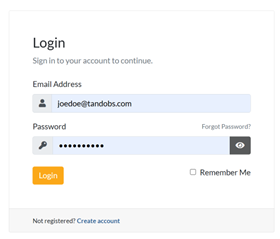
2. Enter your registered email address and password, then click Sign In.
3. Once logged in, you’ll see the tandohost.co.za dashboard. Navigate to Active products/services and log in to cPanel

4. You will now be taken to the cPanel Dashboard, where you can manage all aspects of your website.
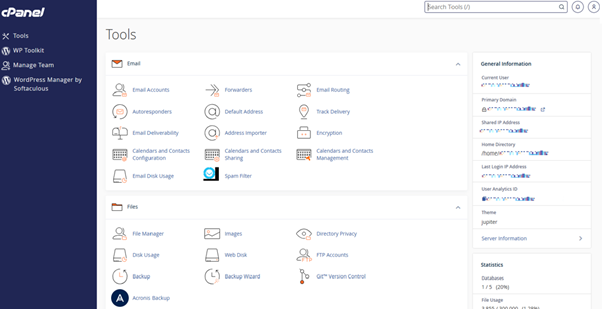
5. Scroll to the Domains section and click Domains.
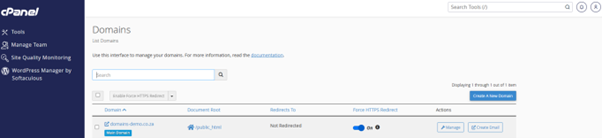
6. Select Create A New Domain and enter your new domain name.
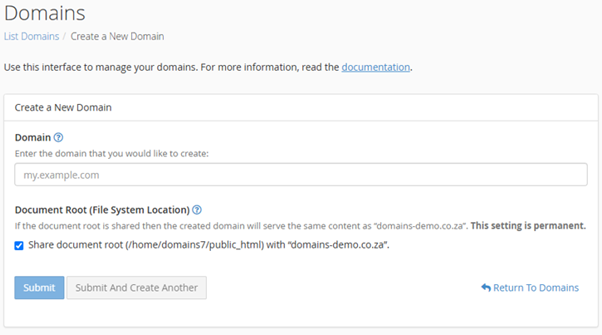
Example:
mynewwebsite.co.za
7. The Subdomain and Document Root fields will fill in automatically. You can customize the folder where your site files will be stored if needed.
Custom Folder Example:
public_html/mynewwebsite
⚠️ Important: Make sure to uncheck the Share document root option. This ensures the new site has its own folder and does not display content from your main domain.
8. Click Submit. cPanel will confirm that the new domain has been successfully added.
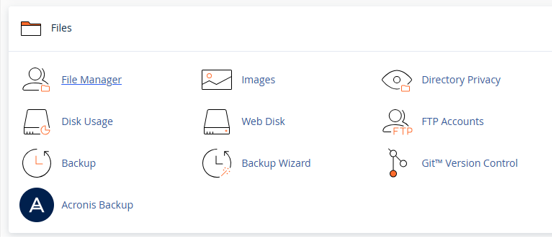
Once the domain is added, upload your website files (HTML, CSS, images, scripts, etc.) into the designated folder using either File Manager in cPanel or an FTP client.
Tip: Keep each website in its own subdirectory to stay organized.
Example:
public_html/site2
Additional Tips
Even after adding the domain in cPanel, DNS changes may take 24–48 hours to fully propagate across the internet. During this time, your site might not be visible to all visitors.
While cPanel automatically creates a subdomain, visitors will access your website using the full domain name. You can also set up Redirects under the Domains section if you wish to forward the new domain to another site.
Each domain functions as an independent website, but all sites on the same hosting plan share server resources, including disk space and bandwidth.
You can also create email accounts for your new domain via the Email Accounts section in cPanel.
For security, install an SSL certificate once the domain is propagated. AutoSSL may install it automatically, or you can manually check and install it via the SSL/TLS Status section.
If you plan to use a content management system like WordPress, Joomla, or Drupal, use Softaculous Apps Installer in cPanel. For sites requiring a database, create a new database and user in the Databases section and link them to your website.

