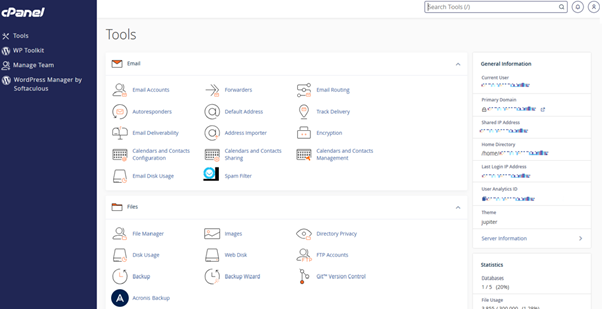
Creating extra FTP accounts allows you to grant secure access to specific directories within your hosting account. This lets team members or collaborators work on certain sections of your website without giving them full access to your entire account.
In this guide, we will walk you through creating additional FTP accounts using the cPanel dashboard, available to users on tandohost.co.za cPanel Hosting plans.
Access Your FTP Account
- Log in to your tandohost.co.za account and access the cPanel dashboard. Login - TandoHost
- In cPanel, scroll down to the Files section and click FTP Accounts. This is where you can manage all your FTP accounts.
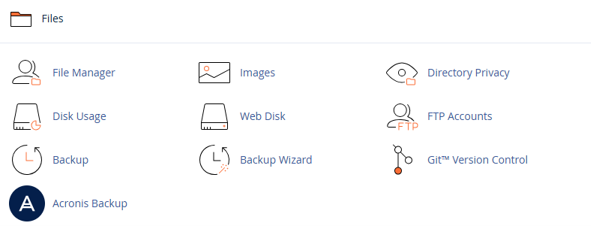
Create a New FTP Account
- Click Create FTP Account and enter a new Login Name.
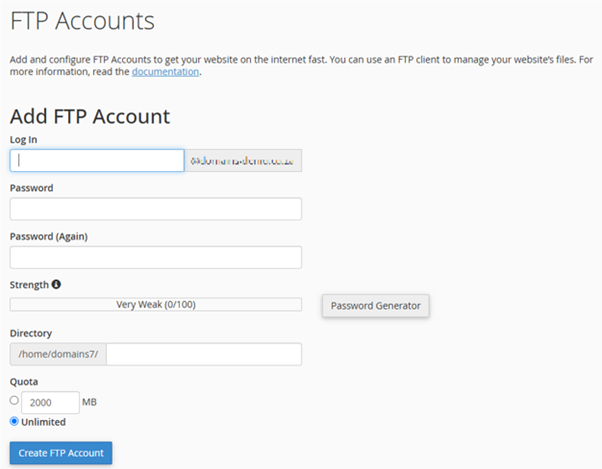
2. Set a Password and confirm it.
3. Specify the directory the account will access:
- To give access to the full website, use / as the directory.
- To restrict access to a subfolder (e.g., /demouser), enter that folder in the directory box.
Note: You can later change the password, adjust the quota, or delete the FTP account entirely.
Set a Quota Limit
- Optionally, assign a Quota Limit to the FTP account to manage storage.
- Once ready, click Create FTP Account.
You have now successfully created an additional FTP account in cPanel.
Benefits of Creating Additional FTP Accounts
- Collaboration: Each team member can access only the necessary files, keeping the rest of your account secure.
- Client Access: Provide clients or external partners with limited access to project files.
- Security: Individual login credentials reduce the risk of unauthorized access or breaches.
- File Management: Assign specific folders to different users for better organization.
- Resource Allocation: Limit disk space usage per account to ensure fair resource distribution.
- Compliance: Meet regulatory or internal requirements for data access control.
Logging in to tandohost.co.za
- Go to the tandohost.co.za Login page.
- Enter your Email and Password, then click Sign In.
- The dashboard will display your Manage Account menu on the left and Account Information, Overview, and Support Tickets on the right.
Accessing cPanel from Your tandohost.co.za Dashboard Login - TandoHost
- Click Manage Services, then select the hosting package for the domain you want to manage (e.g., Web Hosting).
- Click Manage next to the domain.
- Under Product Information, scroll to Control Panel and click Login to open cPanel.