
Launching a new website often involves a transition period where the site isn’t ready for visitors yet. During this time, it’s helpful to display a temporary landing page—commonly known as a Coming Soon or Under Construction page. This page informs visitors that your site is in progress while preventing full public access to unfinished content.
These placeholder pages are also widely used when a domain is registered but not yet active, a setup often referred to as Domain Parking.
Building an Under Construction Page
- Log in to your tandohost.co.za account. Login - TandoHost
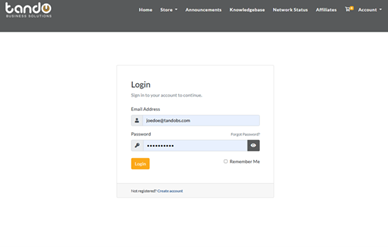
2. Navigate to Product/Services in your dashboard.
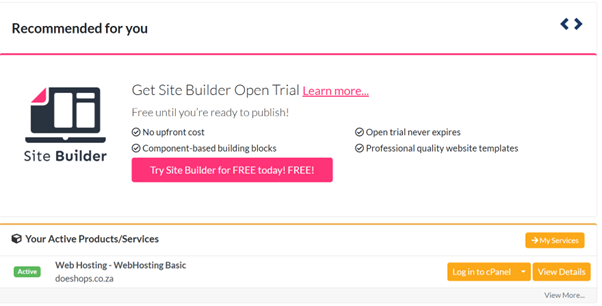
3. Select Web Hosting to view your hosted websites.
4. Click Log in too cPanel next to the site you want to update to open cPanel.
5. In cPanel, go to File Manager and locate the root directory (public_html for your main domain).
6. Create a New File → name it something like underconstruction.html.
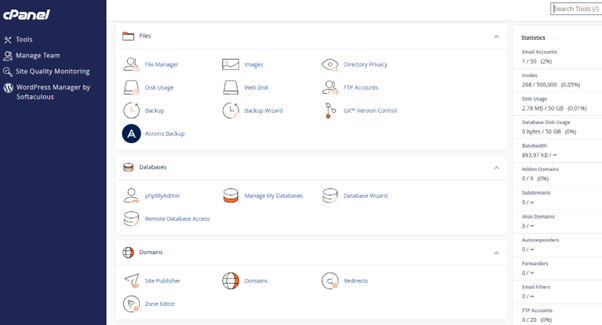
6. Click Create New File to confirm.
Customizing Your Page
- Select your new file and open it with the HTML Editor.
- Add your content:
- A short message about the site being under construction.
- Basic company info and contact details.
Understanding Default Pages
Web servers look for specific filenames by default to display your website. The common order of priority is:
- index.htm
- index.html
- index.php
- default.htm
If you want your custom Under Construction page to display first, you’ll need to update your .htaccess file.
Editing the .htaccess File
- Open File Manager → choose Web Root for the right domain.
- Enable Show Hidden Files to locate .htaccess.
- Right-click and Edit the file.
- Add this line (replace with your filename):
- #Set alternate index page
- Directory Index underconstruction.html
- Save changes and test your domain to confirm it works.
You can list multiple filenames, and the server will check them left to right. Example:
Directory Index underconstruction.html index.htm index.html index.php default.htm
Tips & Best Practices
- Be Clear: Tell visitors the site is in development. Add an apology or estimated launch date if possible.
- Provide Contact Info: Share an email or phone number for urgent inquiries.
- Keep It On-Brand: Match your company’s look with simple colors, fonts, or graphics.
- Engage Visitors: Offer newsletter signup or link to social media channels.
- Add a Countdown: If you know the launch date, a timer builds anticipation.
- Minimize Downtime: Remember, this page is temporary. Aim to launch your main site quickly while keeping users updated.
By following these steps, you’ll have a professional Under Construction page ready to go—keeping visitors informed and your brand presence alive while your main website is under development.

