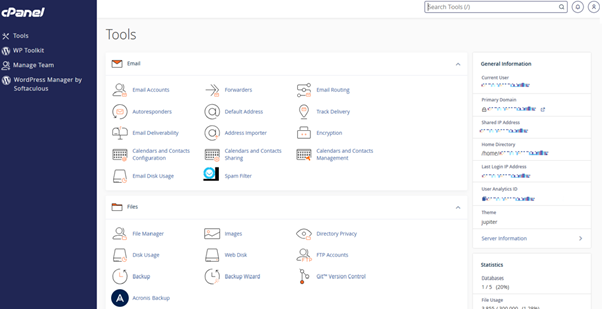
This guide assumes that you are already logged into your tandohost.co.za Account and have accessed the cPanel Dashboard. Follow the instructions below if you need guidance on how to do this.
- Access Security Tools in cPanel
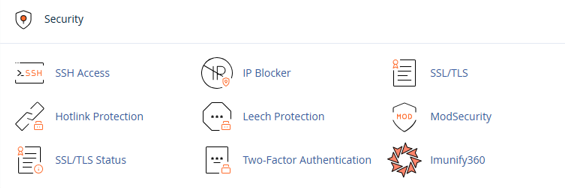
Within the cPanel Dashboard, go to Tools and scroll down to the Security section.
- Open the IP Deny Manager
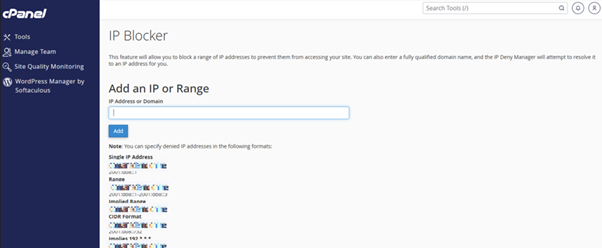
In cPanel, locate and open the IP Blocker interface.
- Add IP Addresses or Ranges
Enter the IP address or range you want to block into the provided text box. cPanel supports several formats:
Examples of Accepted Formats:
- 10.5.3.33 → Single IP address
- 10.5.3.3-10.5.3.40 → Range of IPs
- 10.5.3.3-40 → Implied range
- 10.5.3.3/32 → CIDR format
- 10. → Implied IP address (blocks all addresses starting with 10)
After entering the IP, click Add.
Note: Using implied IP addresses like 10. will block the entire range 10.*.*.*, effectively restricting access to any IP starting with 10.
- View Currently Blocked IPs
When an IP is blocked, cPanel converts the ranges into CIDR format and updates the .htaccess file automatically. To view blocked IPs, check the following fields:
- Server Setting: Shows the IP range in CIDR format
- Beginning IP: Starting address of the blocked range
- Ending IP: Ending address of the blocked range
Example: Blocking 208.74.124.96-208.74.124.128 will display that range in the Currently Blocked IP Addresses list.
- Unblocking an IP Address
To remove an IP from the blocked list:
- Go to Currently Blocked IP Addresses and locate the IP you want to unblock.

- Click Delete in the Actions column next to the IP.
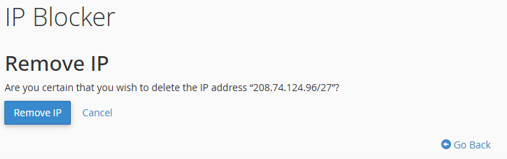
- Confirm by clicking Remove IP.
Benefits of Using the IP Blocker in cPanel
- Enhanced Security: Prevent malicious IPs from accessing your website.
- Unauthorized Access Prevention: Restrict specific IPs to manage suspicious activity.
- Traffic Management: Reduce unwanted traffic from bots and crawlers, improving site performance.
- Regulatory Compliance: Block IPs to adhere to security or compliance requirements.
- Temporary Blocking: Easily block or unblock IPs for maintenance or security purposes.
- Access Your tandohost.co.za Account
1. Open the tandohost.co.za login page in your web browser. Login - TandoHost
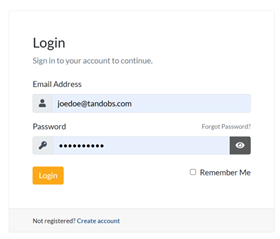
2. Enter your registered email address and password, then click Sign In.

3. Once logged in, you’ll see the tandohost.co.za dashboard. Navigate to Active products/services and log in to cPanel
4. You will now be taken to the cPanel Dashboard, where you can manage all aspects of your website.