
Restricting IP addresses from accessing your site is one of the most reliable ways to safeguard it from suspicious behavior, spam, harmful traffic, and potential cyber threats. With cPanel’s IP Blocker tool, you can quickly deny access to harmful IPs or even entire regions. At tandohost.co.za, keeping your website and data secure is simple thanks to the intuitive control panel included in every Web Hosting package.
How to Block IP Addresses in cPanel
Here’s a step-by-step guide to blocking unwanted IPs directly from your hosting dashboard:
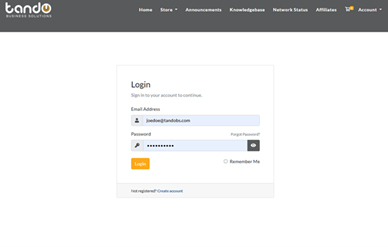
- Log in to your tandohost.co.za account. Login - TandoHost
2. From the menu, select Log in to cPanel
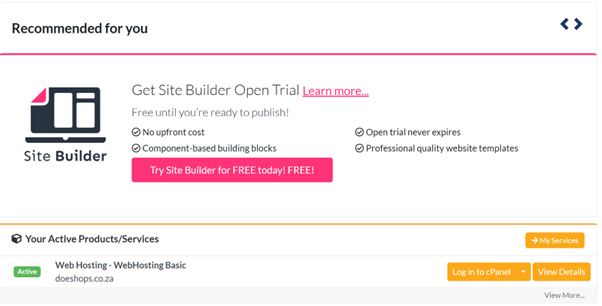
- Under Control Panel, click Login to open your cPanel dashboard.
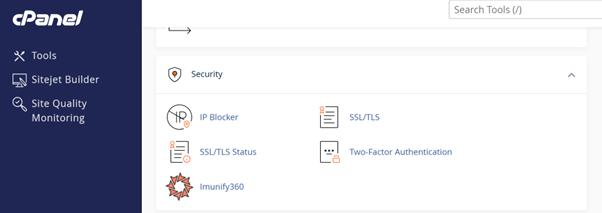
- Scroll to the Security section and select IP Blocker.
5. In the field labeled Add an IP or Range, enter the IP address (or range) you want to block.
- Example: block a single IP (192.168.0.1) or an entire range (192.168.0.1–192.168.0.255).
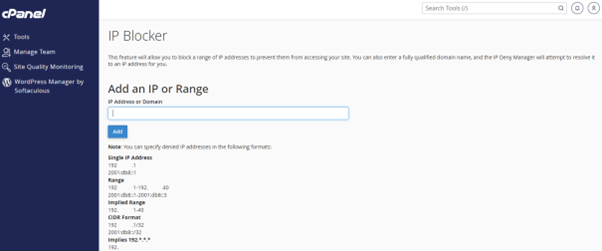
6. Click Add to confirm.
7. A confirmation message will appear, and the blocked IP(s) will be listed.
8. To remove an IP later, click Delete next to it in the blocked list.
Why Block IP Addresses in cPanel?
Blocking specific IPs can help you:
- Prevent Brute-Force Attacks – Stop repeated failed login attempts aimed at gaining unauthorized access.
- Reduce Spam & Fraud – Protect your site from spam comments, fake sign-ups, and abusive activity.
- Control Access – Restrict visits from competitors or entire regions causing issues.
Tips for Effective IP Blocking
- Be Cautious with Ranges: Blocking a full range might also block legitimate users or important crawlers (e.g., Google), which could hurt your SEO.
- Use Lookup Tools: Services like whatismyipaddress.com or cPanel’s server logs (Awstats, Raw Access) can help identify suspicious IPs.
- No Wildcards: The IP Blocker only accepts precise entries—wildcards (*) aren’t allowed.
- Know the Limits: cPanel blocks access at the website level. For full server security, consider a firewall or advanced security software.
- Combine with Plugins: WordPress users can strengthen protection with security plugins that include automated IP blocking.
- Backup Before Manual Edits: If you modify your .htaccess file to block IPs manually, always keep a backup to restore if needed.
With these steps and precautions, you’ll be able to manage who can (and cannot) access your website, keeping it safer and more reliable.

