
Subdomains let you create distinct sections of your website without needing a separate domain name. They’re an excellent way to organize your content efficiently. However, there are times when you might need to remove a subdomain—whether you’re rebranding, consolidating websites, or simply tidying up your hosting account. With tandohost.co.za’s Web Hosting plan, the cPanel dashboard makes deleting a subdomain quick and easy, providing all the tools you need to manage your site effectively.
How to Delete a Subdomain in cPanel
Access Your tandohost.co.za Account
1. Open the tandohost.co.za login page in your web browser. Login - TandoHost
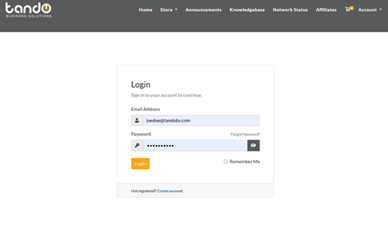
2. Enter your registered email address and password, then click Sign In.
3. Once logged in, you’ll see the tandohost.co.za dashboard. Navigate to Active products/services and log in to cPanel
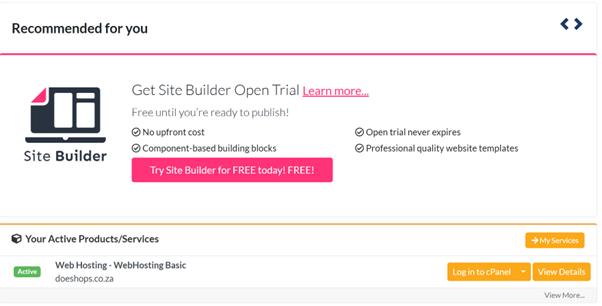
4. You will now be taken to the cPanel Dashboard, where you can manage all aspects of your website.
- Scroll down to the Domains section and click Domains.
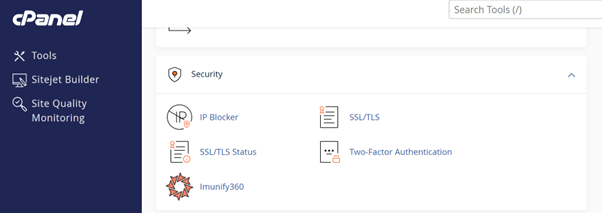
- On the Domains page, you’ll see a list of all your domains and subdomains. Locate the subdomain you wish to remove.
- Click Manage next to that subdomain, then select Delete.
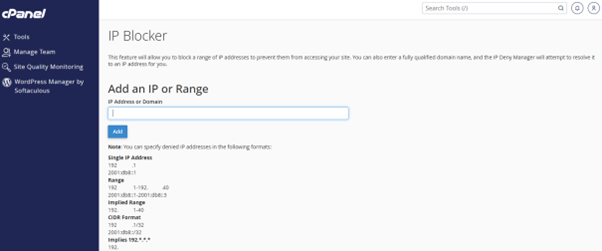
- A confirmation prompt will appear asking you to confirm the permanent deletion of the subdomain and its files (if applicable).
- Click Delete Subdomain to confirm.
- The subdomain and its folder will be permanently removed from your hosting account.
Additional Information
Why Delete a Subdomain?
There are several reasons to delete a subdomain:
- The subdomain served a temporary purpose, like a development site or marketing landing page, and is no longer needed.
- You’re restructuring your website, moving content from a subdomain to a subfolder for better SEO or a unified user experience.
- A subdomain has been compromised, and deleting it helps contain damage and remove malware or harmful code.
- Unused subdomains consume server resources (disk space, bandwidth, etc.). Removing them frees up these resources and keeps your hosting account organized.
Best Practices for Deleting a Subdomain
- Back up important content: Deleting a subdomain removes all associated files. Use cPanel’s File Manager or Backup Wizard to save any content or databases you wish to keep.
- Check dependencies: Ensure no websites, services, or applications rely on the subdomain, including analytics tools or custom configurations.
- Remove associated folders: Deleting the subdomain in cPanel may not remove its folder automatically. Manually delete the corresponding folder in File Manager to fully clear its content.
- Email accounts: Any emails associated with the subdomain (e.g., info@subdomain.example.com) will also be deleted. Move important emails before removing the subdomain.
- Redirect links: If the subdomain contains public-facing pages, update or redirect links. Consider setting up a 301 redirect to guide visitors to a relevant location.
- DNS propagation: cPanel removes the subdomain’s DNS records, but changes may take 24–48 hours to propagate across the internet.

