
Imunify360: Comprehensive Website Security Made Easy
Imunify360 is a robust security solution designed to safeguard your website against malware, cyberattacks, and other online threats. With features like real-time protection, advanced firewall rules, and thorough malware scanning, your site stays secure around the clock. The cPanel integration included in your Web Hosting plan simplifies installation and configuration, making it easier than ever to protect your website.
How to Install and Configure Imunify360 in cPanel
Follow these steps to set up Imunify360 and strengthen your website’s security:
- Log in to your tandohost.co.za account. Login - TandoHost
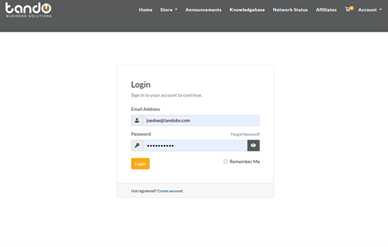
2. Navigate to Your Product/Services
3. Select Login next to Control Panel to open your cPanel dashboard.
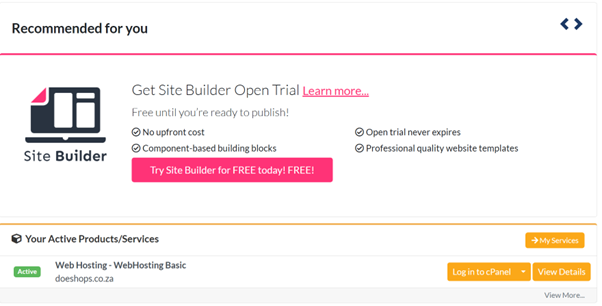
4. Scroll down to the Security section and click Imunify360.
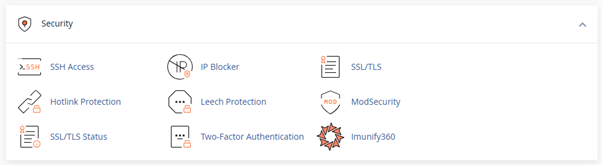
5. If Imunify360 is not installed, click Install. The process may take a few moments. Once complete, the Imunify360 icon will appear in the Security section.
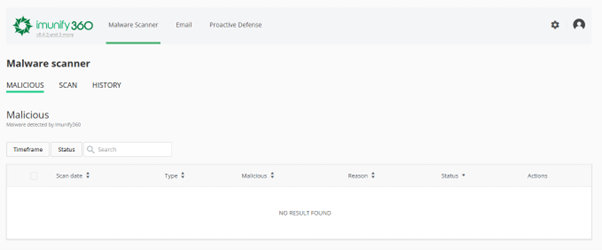
6. Click the Imunify360 icon to open the security dashboard.
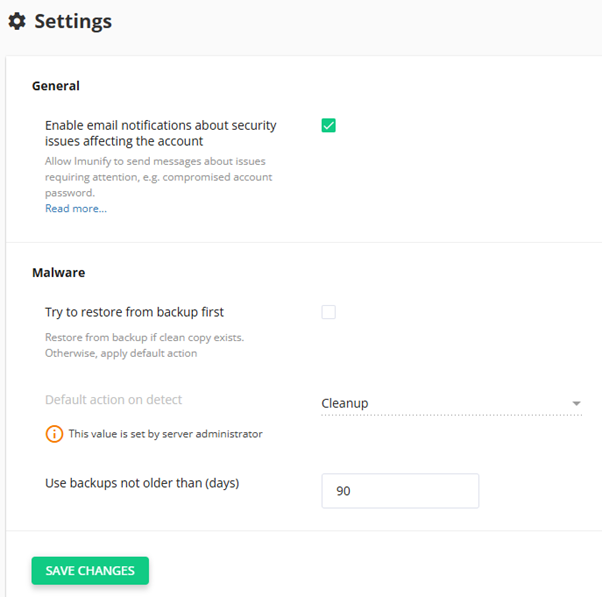
Configuring Security Settings
On the Imunify360 dashboard, you can adjust various security settings:
- Real-Time Protection: Enable continuous monitoring to block malware and threats instantly.
- Firewall Rules: Customize firewall settings to block malicious IPs and prevent unauthorized access.
- Intrusion Detection: Detect and block suspicious login attempts automatically.
- Malware Scanning: Schedule automatic scans daily, weekly, or monthly to identify and remove harmful files.
- Alerts: Enable notifications to stay informed of potential security threats or completed scans.
After adjusting settings, click Save to apply changes.

