
This guide explains how to manage files using FTP Voyager, the FTP client we’ll be working with. File management in FTP Voyager is not limited to developers or server administrators—anyone responsible for website upkeep can use it. With FTP Voyager, you can upload and download website files, manage directories, edit HTML/CSS files, and carry out other tasks essential for maintaining your site.
Managing Files with FTP Voyager
Using FTP Voyager makes file transfers faster, supports collaboration, and helps with automation, backups, and security. Before starting, make sure you have FTP Voyager installed and are connected to your remote server.
The steps below show you how to create, rename, delete, and edit folders within the FTP Voyager interface.
Create a New Folder
- Click New Folder.
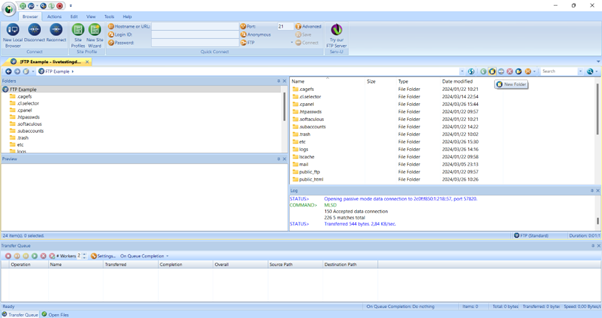
2. Enter a name for your new folder.
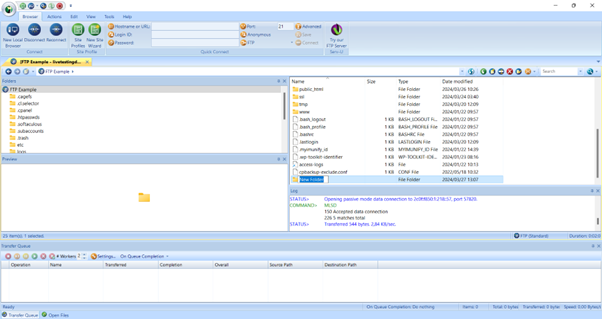
3. Your folder is now created and visible in the directory.
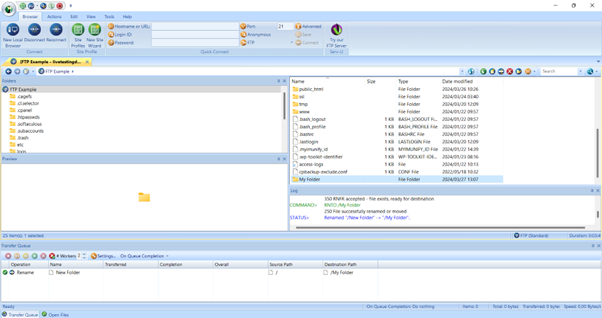
Rename a Folder
- Select the folder you want to rename and click Rename.
- Type in the new folder name.
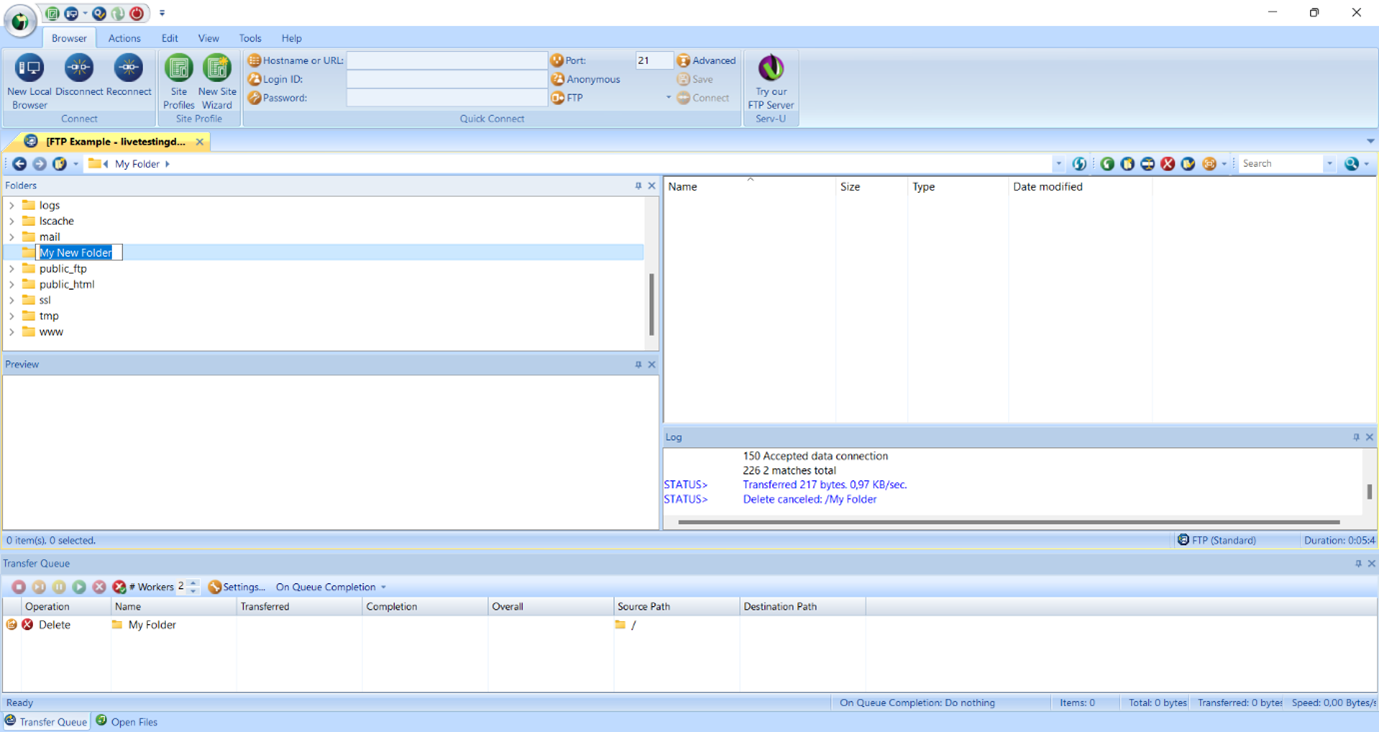
3. You’ll now see the updated folder name.
Delete a Folder
- Select the folder you want to remove and click Delete.
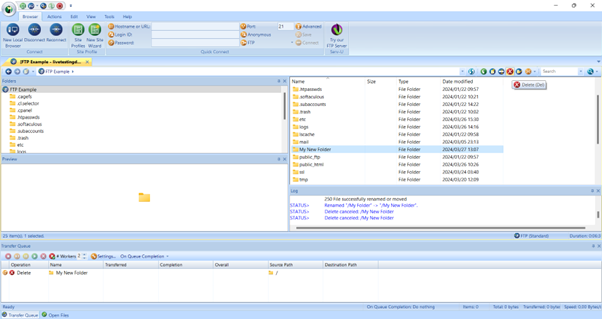
2. The folder will be deleted from your directory.
Change Folder Permissions
- Select a file or folder and click Properties.
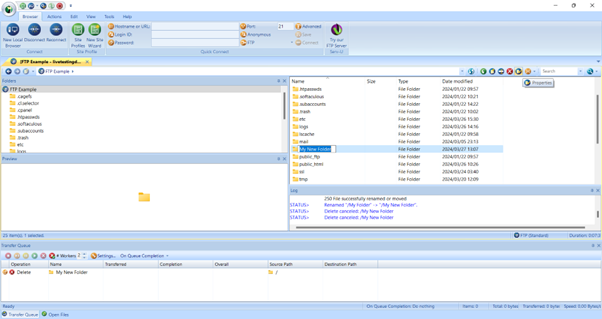
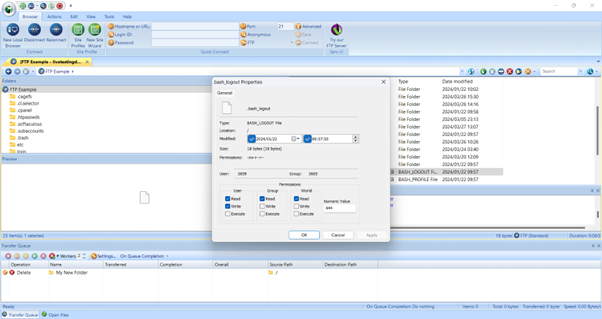
2. From the menu, adjust the permissions or attributes as needed.
- Note: File properties and folder properties have some differences, which will be shown in the menu.
Additional Information – FTP Voyager Features
FTP Voyager is an FTP client (File Transfer Protocol software) that enables you to transfer files between your computer and a remote server over the Internet. Think of it as a “file explorer” for your website, giving you direct access to manage and edit files stored on your hosting server.
Here are some of the key benefits of using FTP Voyager:
Security
Supports secure transfer protocols like SFTP (SSH File Transfer Protocol) and FTPS (FTP over SSL/TLS). These encrypt your data during transfers, keeping sensitive information safe from interception.
Automation
Includes features such as:
- Scheduled transfers
- Folder synchronization
- Scripting support
This helps reduce repetitive work and streamline your file management process.
Backup & Recovery
You can back up important files to a remote server and retrieve them later if needed. This ensures you always have an offsite backup in case of data loss or system failure.
Collaboration
Multiple users can connect to the same FTP server, share files, and work on projects together—no matter where they are located.
Remote File Management
Easily browse directories, create or delete folders, and manage files directly on the server without needing local copies.
File Transfer
Seamlessly move documents, media files, updates, and more between your computer and a server, enabling smooth data sharing across networks.

