
Ensuring your website uses the correct time zone is crucial for accurate timestamps in logs, user activity tracking, scheduled tasks, and other application functions. Properly configuring your PHP time zone guarantees that all date and time functions align with your local or target region.
If you use cPanel with your tandohost.co.za Web Hosting account, you can easily set your PHP time zone by editing the php.ini file or using the Select PHP Version interface.
Steps to Configure PHP Time zone via cPanel
Follow these steps to set or update your PHP time zone through cPanel:
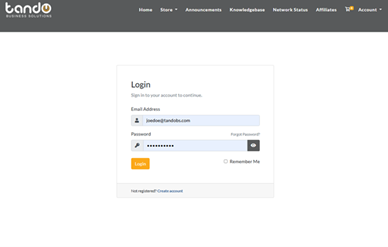
- Login to your tandohost.co.za account. Login - TandoHost
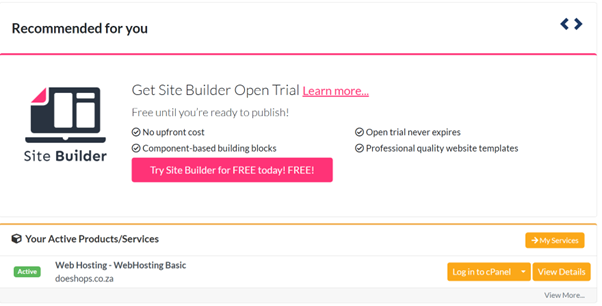
2. Navigate to Your products/services:
- Click Log in to cPanel on the right menu.
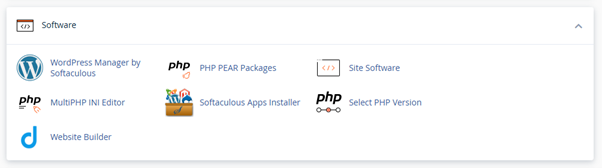
3. Access PHP Settings:
- Scroll down to the Software section.
- Click Select PHP Version.
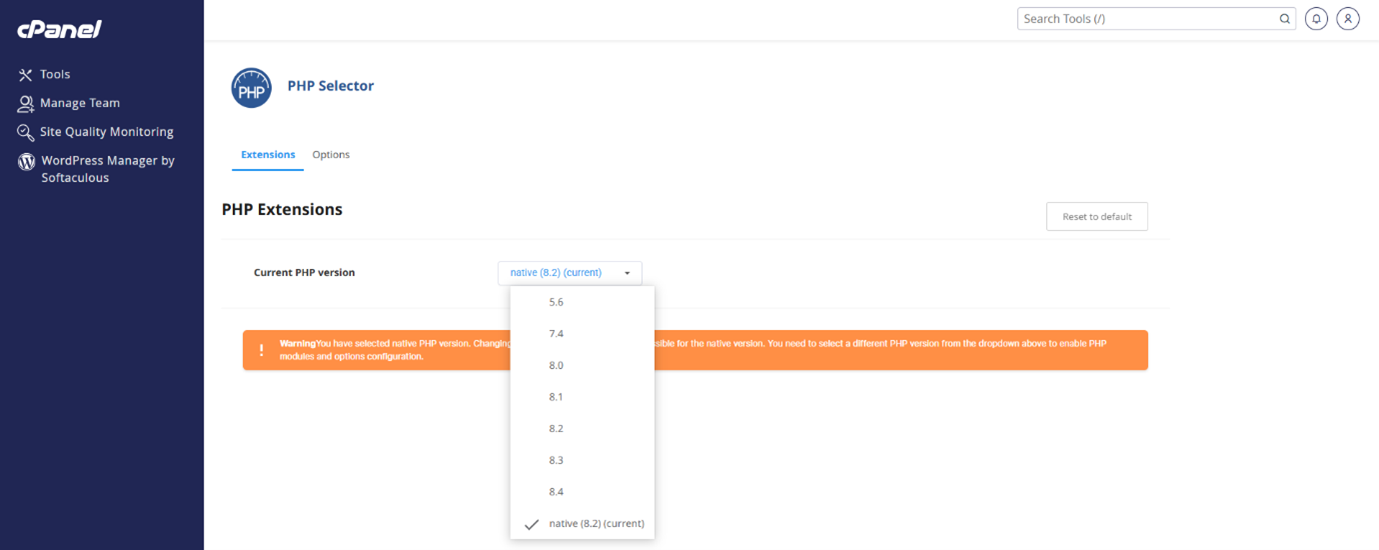
4. Open PHP Options:
- Click Options or Switch to PHP Options in the top-right corner.
5. Locate the Time zone Setting:
- Ensure the correct PHP version is selected.
- Find the date.time zone field.
6. Select Your Time zone:
- Click the current value (or empty field).
- Choose your preferred time zone from the dropdown (e.g., Africa/Johannesburg).
7. Save Changes:
- Click outside the field or press Enter.
8. Confirmation:
- Your new time zone is applied immediately to all PHP scripts on your website.
Additional Information
What is PHP?
PHP (Hypertext Preprocessor) is a server-side scripting language used for web development. Unlike client-side languages like JavaScript, PHP runs on the server, not in the browser.
When a user requests a page, the server executes the PHP code, generates HTML, and sends it to the user’s browser. This allows your site to display dynamic content, interact with databases, and more. PHP can also be embedded directly into HTML files, making it flexible and easy to use.
Why Change PHP TimeOne in cPanel?
Changing the PHP time zone ensures that your website displays and processes dates and times correctly.
Many web applications—like WordPress, ecommerce platforms, forums, and custom scripts—rely on PHP to manage timestamps for posts, orders, user activity, and comments. If the PHP time zone does not match your target or visitors’ time zone, date and time information may be inaccurate, leading to confusion and poor user experience.
Example:
If your server is set to UTC but most of your users are in South Africa (SAST), a post made at 10:00 AM SAST will appear as 8:00 AM UTC unless the PHP time zone is correctly configured.
Best Practices for PHP Time zone Configuration
- Use Supported Time zone Strings: Use valid PHP time zone names such as Africa/Johannesburg, Europe/London, or America/Newyork. Full list available in PHP documentation.
- Impact on PHP Functions: Functions like date (), time (), strtotime(), and datetime () will follow the newly set time zone.
- Default Time zone: Without configuration, PHP may default to UTC or the server’s global setting.
- PHP Version Matters: Make sure to set the time zone for the PHP version currently used by your website.
- php.ini Option: Advanced users can directly edit php.ini (usually in /home/username/public HTML/) or use .htaccess if permitted.
- CMS Settings: Platforms like WordPress and Joomla have their own time zone settings. Configure them in the CMS dashboard even after updating PHP.
- Fix PHP Warnings: Setting a time zone can prevent warnings about undefined time zones in your logs.

