
How to Access FTP Details in cPanel
FTP (File Transfer Protocol) allows you to upload, download, and manage your website files directly between your computer and your web server. To connect using an FTP client like FileZilla, you’ll need specific login credentials: your FTP hostname, username, and password.
With tandohost.co.za web hosting, finding your FTP details in cPanel is quick and straightforward, giving you complete control over your website files.
How to Locate FTP Details in cPanel
Before you begin, make sure you are logged into your tandohost.co.za account and have accessed the cPanel Dashboard (see instructions below). Login - TandoHost
Step 1: Navigate to FTP Accounts
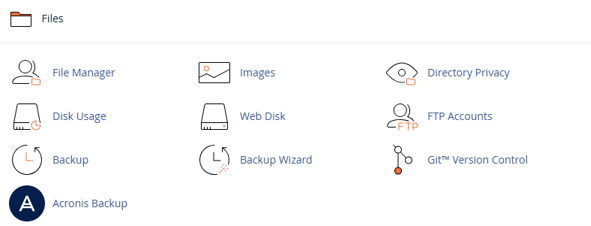
- Scroll down to the Files section and click FTP Accounts.
2. You’ll see a list of existing FTP accounts, which includes:
- FTP Username: Listed under “Logins.”
- FTP Server/Hostname: Usually your domain name (e.g., ftp.yourdomain.co.za) or the server IP address (available under General Information in cPanel).
- Port: Standard FTP uses port 21; for secure FTP (FTPS), use port 990.
How to Change Your FTP Password
- Next to the desired FTP account, click Change Password.
2. Enter a new password to update your FTP credentials.
How to Create a New FTP Account
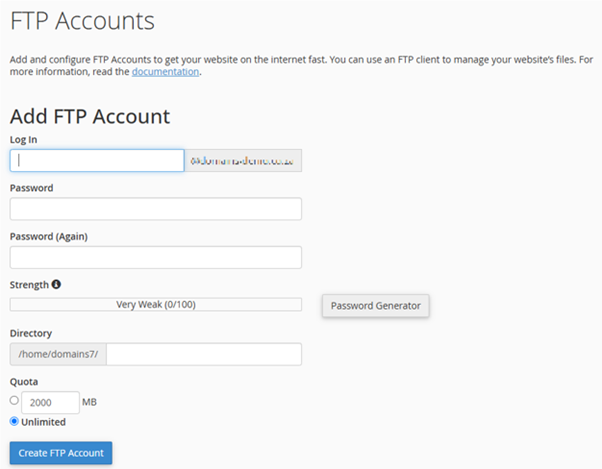
If needed, you can create additional FTP accounts by filling out the form at the top of the FTP Accounts page. This is useful for team members or developers needing restricted access.
Additional Information
What You Can Do with FTP
- Upload website files from your computer.
- Download backups or logs.
- Edit, delete, and organize website content efficiently.
FTP vs File Manager
- File Manager: Ideal for quick edits or uploads directly in your browser.
- FTP: Better for large files, drag-and-drop transfers, or batch editing with external tools.
General FTP Information
- Default FTP Account: Your main cPanel account also works as the default FTP user, pointing to the root directory.
- Additional FTP Users: Create users with restricted access to specific folders for team collaboration.
- Security Tips: Use FTPS (FTP over TLS) for encrypted connections, regularly update passwords, and disable unused FTP accounts.
- Firewall Note: Ensure port 21 or 990 is open when connecting from a private network.
Logging Into tandohost.co.za
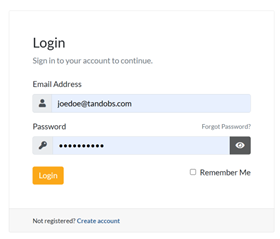
- Visit the tandohost.co.za page Login - TandoHost
- Enter your email and password, then click Sign In.
3. Your tandohost.co.za Dashboard will appear
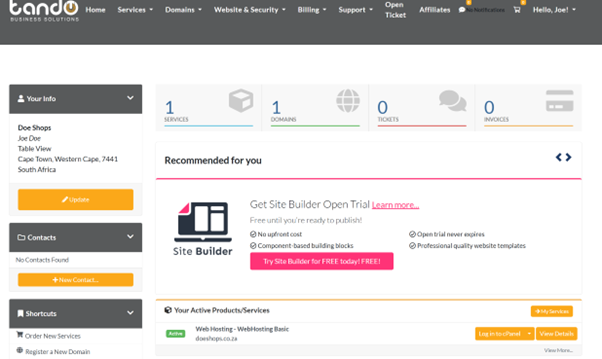
Accessing cPanel from Your tandohost.co.za Dashboard
- Click Log in to cPanel, from your active products/services (e.g., Web Hosting).

2. You will see Product Information, Quick Manage, Resource Usage, and Site Statistics.
3. Under Product Information, scroll to Control Panel and click the Login button to access your cPanel Dashboard.
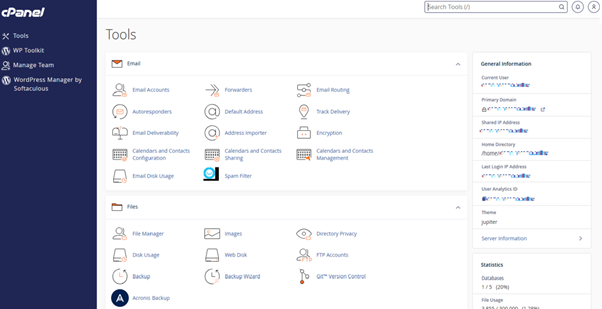
Now you’re ready to manage your website files via FTP or cPanel.

