
Many website owners choose to move their site to a new domain for various reasons, such as rebranding, aligning the domain with their business identity, or transitioning from a temporary domain to a permanent one. Although it may seem complex, the process is straightforward and can be completed in just a few steps using the cPanel dashboard in your tandohost.co.za account.
How to Move a Website to a New Domain in cPanel
- Access Your tandohost.co.za Account
1. Open the tandohost.co.za login page in your web browser. Login - TandoHost
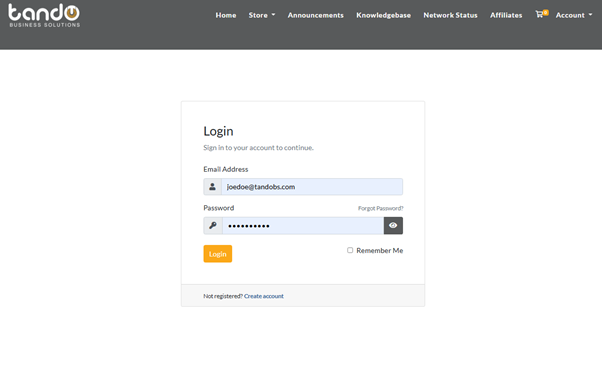
2. Enter your registered email address and password, then click Sign In.
3. Once logged in, you’ll see the tandohost.co.za dashboard. Navigate to Active products/services and log in to cPanel
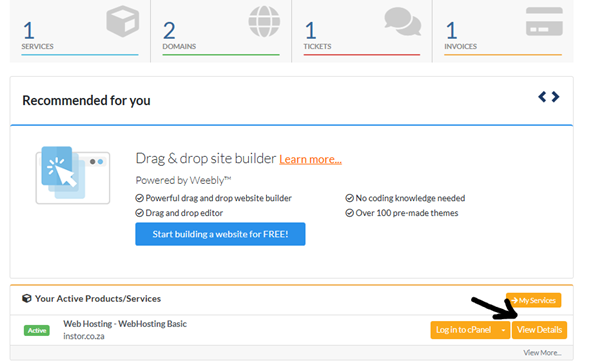
4. You will now be taken to the cPanel Dashboard, where you can manage all aspects of your website.
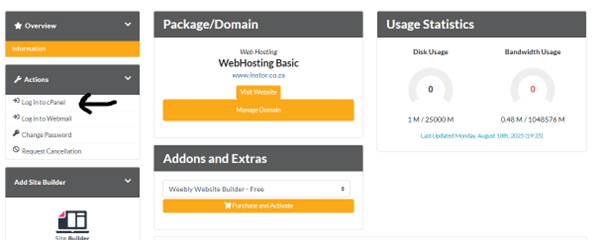
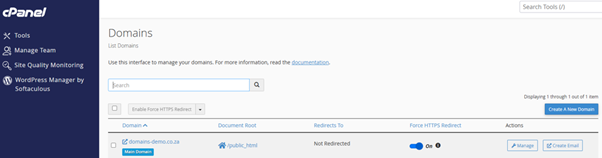
- In cPanel, scroll to the Domains section and click Domains.
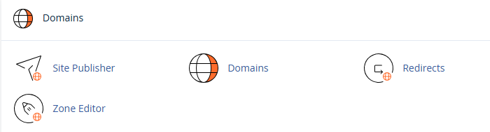
5. Add your new domain name and assign a document root (or leave the default).
6. Click Add Domain to link it to your hosting account.
7. Go back to the cPanel dashboard and click File Manager under the Files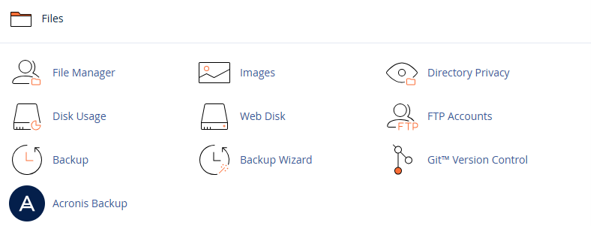
8. Open your old domain’s folder, for example:
9./public_html/olddomain.com
10. Select all files and click Move, then transfer them to your new domain’s root folder:
11./public_html/newdomain.com
12. Update configuration files (e.g., wp-config.php for WordPress) to reflect the new domain or directory.
13. If necessary, use phpMyAdmin to update any database references to the new domain.
14. Add a 301 redirect in your .htaccess file on the old domain to forward traffic to the new domain.
15. Visit your new domain to confirm that your website is functioning correctly.
Key Considerations
- Always back up your website files and databases before starting.
- Use 301 redirects to preserve SEO rankings and redirect visitors seamlessly.
- Make sure the DNS settings for your new domain point correctly to your hosting provider.
- Recreate any email accounts associated with the old domain, if needed.
- If moving from a subdomain (e.g., blog.olddomain.com) to a root domain (e.g., newdomain.com), update all internal links.
- Install an SSL certificate on the new domain to ensure secure, encrypted connections.
- Consider adding a custom 404 or maintenance page during the migration to enhance user experience.
Additional Information
Why Move a Website to a New Domain?
- Rebranding – If your business changes its name, undergoes a branding update, or merges with another company, switching to a new domain helps reflect these changes and avoids confusion.
- Testing to Live Site – Websites are often developed or redesigned on a temporary domain (e.g., dev.yourcompany.co.za) and need to be moved to a permanent live domain once ready.
- SEO Improvement – A new domain with relevant keywords or a shorter, more memorable name can improve search engine rankings and make it easier for customers to find you.
- Memorability – A concise, easy-to-type domain boosts direct traffic, improves brand recall, and encourages sharing.
- HTTP to HTTPS Upgrade – While HTTPS can be implemented on an existing domain, combining it with a domain change can be a convenient opportunity to enhance website security.

