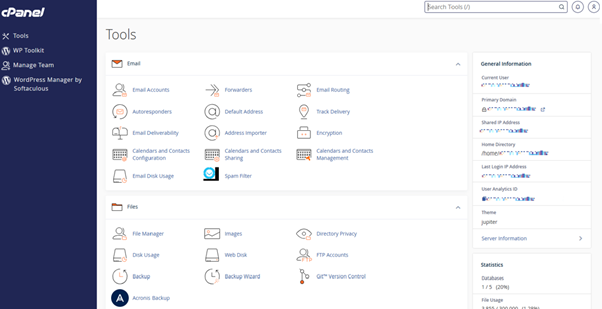
This guide explains how to use the Index Manager in the Web Hosting cPanel dashboard to control how your website directories are indexed and displayed. Proper use of this feature can enhance user experience, improve security, and give both administrators and visitors better management and navigation options.
By default, if a directory does not contain an index file, its contents will automatically be listed for users to view in their browser. With Index Manager, you can customise how these directory listings appear.
How to Access Index Manager in cPanel
This guide assumes you have an active web hosting plan with tandohost.co.za and are already logged into cPanel.
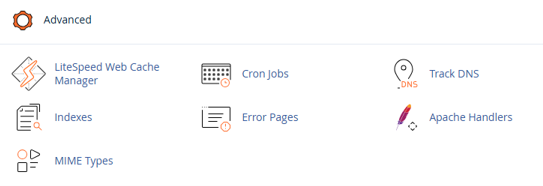
- In cPanel, go to the Advanced section and locate Indexes. Click on it to open the Index Manager.
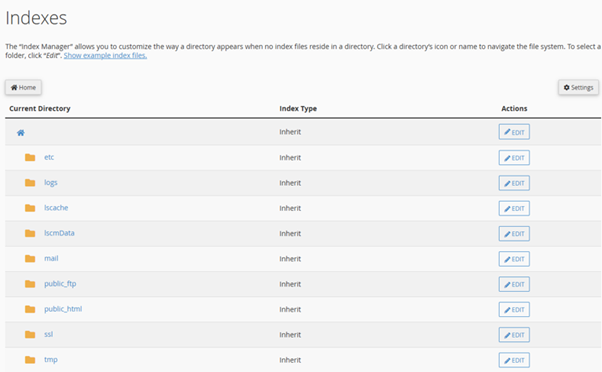
- From the Index Manager home screen, you will see a list of all directories available on your account.
Editing Directory Index Settings
- To modify the indexing settings for a directory, click Edit next to the desired directory.
Customising Index Options
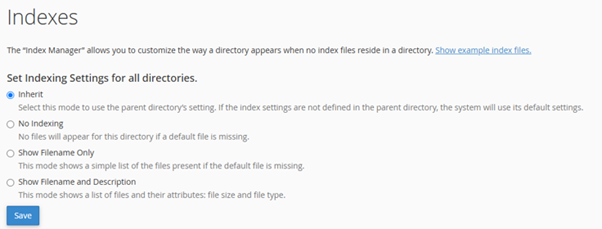
- Choose one of the following options for the directory:
- Inherit: The directory inherits the index settings of its parent. If the parent directory has no specific settings, the system’s default will be used.
- No Indexing: Prevents a directory listing from being displayed if no index file is present.
- Show Filename Only: Displays a simple list of files in the directory when the default index file is missing.
- Show Filename & Description: Displays a list of files along with their details, such as file size and type.
- Once you’ve selected your preferred option, click Save. The changes will take effect immediately.
Note: If an index file exists in a directory (e.g., index.php, index.html, or index.htm), it will always display to users regardless of the Index Manager settings.
Additional Information
Benefits of Using cPanel Index Manager
The Index Manager offers multiple benefits for managing directory indexing and display on your website:
- Enhanced Security: Using the No Indexing option can restrict access to sensitive directories, protecting your site from unauthorized browsing.
- Customised Directory Listings: You can tailor how files and directories appear to match your website’s design, creating a more cohesive and professional user experience.
- Improved User Experience: Configuring default index pages ensures visitors can easily navigate directories and find the content they need.
- Content Management: Control how files are presented, whether as a simple list or with direct download links, making content sharing more efficient.
- Regulatory Compliance: Some organisational or legal policies may require specific directory display settings. Index Manager allows you to configure settings to meet these requirements.
· Access Your tandohost.co.za Account
· 1. Open the tandohost.co.za login page in your web browser.
· 2. Enter your registered email address and password, then click Sign In.
· 3. Once logged in, you’ll see the tandohost.co.za dashboard. Navigate to Active products/services and log in to cPanel
· 4. You will now be taken to the cPanel Dashboard, where you can manage all aspects of your website.