
Changing a display name is useful for personalizing profiles or updating outdated information. The display name is visible publicly on posts, comments, and author pages.
This step-by-step guide assumes you are already logged into your WordPress Dashboard.
Changing a WordPress User Display Name
Step 1: Access the WordPress Dashboard
- Go to yourwebsite.com/wp-admin and log in with your username and password.
Step 2: Open the User Profile
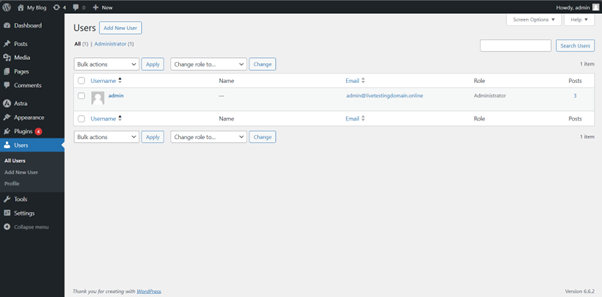
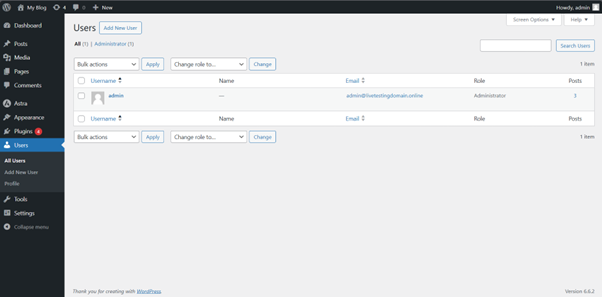
- From the left-hand menu, click Users → All Users.
- Locate the user whose display name you want to change and click their username to open the profile.
Step 3: Edit the Display Name
- Scroll down to the Name section. You’ll see fields for First Name, Last Name, and Nickname.
- Use the Display name publicly as dropdown to select which name should appear on your site.
Step 4: Save Your Changes
- Choose your preferred display name format. You can combine First Name, Last Name, and Nickname.
- To create a custom display name, enter it in the Nickname field and select it from the dropdown menu.
- Scroll to the bottom and click Update Profile to save the changes.
Additional Information
Changing Display Name for Multiple Users
- Repeat the steps above for each user you want to update.
- For managing several users at once, consider a bulk user management plugin.
Customizing Display Names in Themes
- Some WordPress themes have specific settings for displaying user names.
- If display names aren’t showing correctly, check your theme’s settings.
User Role Permissions
- Only administrators or users with the proper permissions can update display names.
- Regular users may not have access to this feature.
Troubleshooting
Display Name Not Updating
- Ensure your changes were saved; the Update Profile button should no longer be available.
- If updates don’t appear immediately, try clearing your browser cache or using a different browser.
Incorrect Display Name Format
- Double-check that the name in the Display name publicly as is correct.
- Confirm changes were saved successfully.
User Role Restrictions
- Make sure your account has permission to edit display names.
- Contact an administrator if you need authorization.
Accessing WordPress via tandohost.co.za
Log in to tandohost.co.za Account
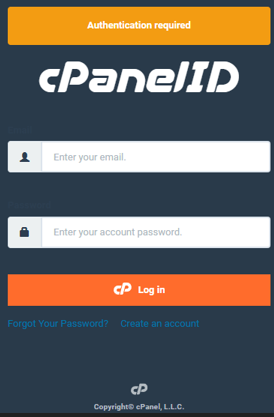
- Go to the tandohost.co.za Login Page. Login - TandoHost
- Enter your email and password, then click Sign In.
Accessing WordPress via tandohost.co.za
Log in tandohost.co.za Account
- Go to the tandohost.co.za Login Page. Login - TandoHost
- Enter your email and password, then click Sign In.
Access WordPress via cPanel
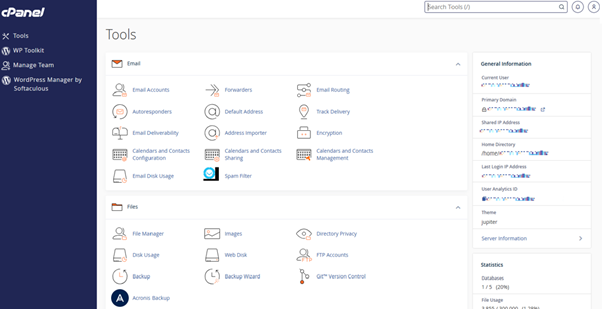
1. Under Product/Services, click Login next to WordPress.
2. Once logged in, select WP Toolkit or WordPress Management from the right-hand menu.

