
How to Safely Deactivate and Delete WordPress Plugins
Adding features like contact forms, SEO tools, and social media integrations to your WordPress website is easy with Plugins — no coding required. Plugins enhance your site’s functionality, but sometimes you may need to deactivate or remove them. This could be due to performance issues, conflicts with other Plugins, or simply because the Plugin is no longer needed. Properly managing your Plugins keeps your WordPress site secure, fast, and fully functional.
This guide will walk you through safely deactivating and deleting WordPress Plugins. It assumes you’re already logged into your WordPress Dashboard and complements our YouTube video: Plugin Powerhouse: Deactivate & Delete WordPress Plugins Like a Pro.
How to Deactivate and Delete a WordPress Plugin
Step 1: Access the WordPress Dashboard
- Go to yourwebsite.com/wp-admin and log in with your Username and Password.
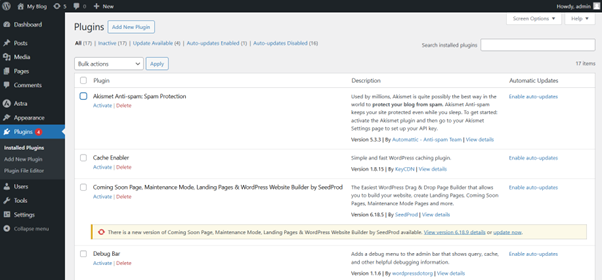
- From the left-hand menu, click Plugins to view a list of all installed Plugins.
Step 2: Deactivate the Plugin
- Locate the Plugin you want to deactivate.
- Click Deactivate under the Plugin’s name. The Plugin will become inactive but remain installed.
Step 3: Delete the Plugin
- Ensure the Plugin is deactivated. If not, complete Step 2 first.
- Click Delete under the Plugin’s name.
- Confirm the deletion by clicking OK. The Plugin will be removed from your website.
Additional Tips for Plugin Management
- Monitor Plugin Updates: Check the changelog before updating to understand new features or changes.
- Limit the Number of Plugins: Too many Plugins can slow your site and create conflicts. Keep only what’s necessary.
- Back Up Your Site: Always back up your website before removing or deactivating Plugins.
- Check for Dependencies: Ensure removing a Plugin doesn’t break functionality with other Plugins or Themes.
- Clean Up Your Database: Some Plugins leave residual data. Use a cleanup Plugin to streamline your database.
- Review Plugin Performance: Regularly assess Plugins and remove any unnecessary ones to improve speed and security.
- Keep Plugins Updated: Outdated Plugins can pose security risks.
- Test on a Staging Site: If unsure how a change will affect your site, try it on a staging environment first.
Accessing WordPress via tandohost.co.za
Logging Into Your tandohost.co.za Account
- Visit the tandohost.co.za login page. Login - TandoHost
- Enter your email and password, then click Sign In.
Accessing WordPress via cPanel
3. In the Product/Service menu, click Login next to WordPress hosting
4. On the cPanel Dashboard, choose WP Toolkit or WordPress Management
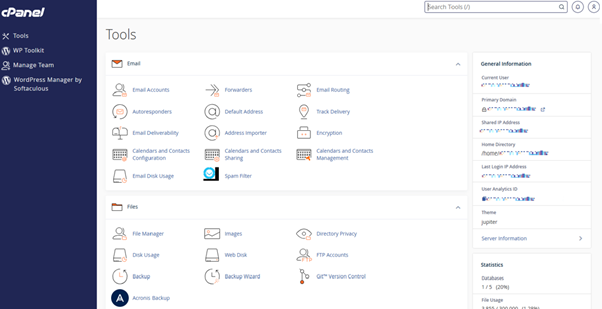
5. Alternatively, use the WordPress icon under Popular Applications.

