
How to Remove the “Uncategorized” Category in WordPress
When WordPress posts are not assigned a category, they are automatically placed under “Uncategorized”, which can make your site appear unorganized and unprofessional.
Although you cannot delete this default category right away, you can modify it or replace it with another category. For example, you can rename it to something relevant or create a new default category and then delete “Uncategorized.”
This article assumes you are already logged into your WordPress Dashboard and is linked to our YouTube tutorial: “Tidy Up Your Categories: How to Delete Uncategorized in WordPress.”
How to Delete the WordPress “Uncategorized” Category
Step 1: In your WordPress Dashboard, scroll down the left menu. Hover over “Settings” and click “Writing.” This will take you to the Writing Settings page.
Step 2: On this page, locate “Default Post Category.” Use the dropdown menu to select a new default category.
Step 3: If you don’t have another category, create one:
- Go to Posts > Categories
- Add a new category
- Click Save Changes to set it as the default
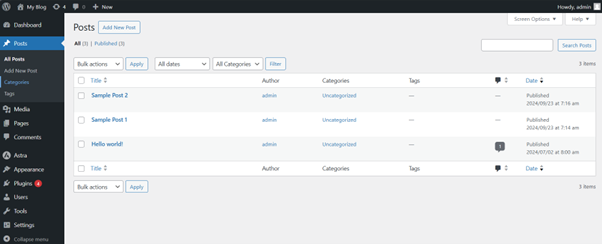
Step 4: Now, in the left menu, hover over Posts and click Categories to manage your categories.
Step 5: To rename “Uncategorized,” hover over it in the list on the right and click Quick Edit.
Step 6: Change the name and slug to something meaningful, then click Update Category.
Step 7: To delete the “Uncategorized” category, hover over it and click Delete.
(Note: You can only delete it after changing the default category.)
Additional Tips
Reassign Existing Posts: Move posts from “Uncategorized” to another category. Go to Posts, select posts, choose Edit from the Bulk Actions menu, pick a new category, then click Update.
Use Plugins for Bulk Management: Tools like Bulk Move make it easy to transfer multiple posts between categories.
SEO Matters: Posts in “Uncategorized” can hurt your SEO and look unprofessional. Always assign meaningful categories.
Regular Maintenance: Review and update categories regularly to keep your site organized and user-friendly.
Log in to Your tandohost.co.za Account
- Go to the tandohost.co.za Login Page Login - TandoHost
- Enter your Email and Password, then click Sign In.
Access WordPress via cPanel from your tandohost.co.za Account
- Under Product/Services, click Login next to WordPress Hosting.
- In cPanel, select WP Toolkit (or WordPress Management if not installed).
(You’ll also find a WordPress icon under “Popular Applications.”)
Access WordPress Online via cPanel
- Go to your cPanel login URL.
- Enter your Email and Password, then click Log In.
- In cPanel, open WP Toolkit or WordPress Management.

