
How to Delete WordPress Categories: A Step-by-Step Guide
Managing categories in WordPress is essential for keeping your website organized and user-friendly. Categories help group similar posts, making it easier for visitors to navigate your site and find relevant content. However, over time, some categories may become outdated or irrelevant. In such cases, deleting them can help maintain a well-structured site.
This guide walks you through deleting WordPress categories safely, reassigning posts if necessary, and accessing WordPress via tandohost.co.za.
How to Delete WordPress Categories
Before starting, ensure you are logged in to your WordPress Dashboard.
- Enter your username and password, then click Log In.
- In the left-hand menu, hover over Posts and select Categories.
- On the Categories page, locate the category you wish to delete.
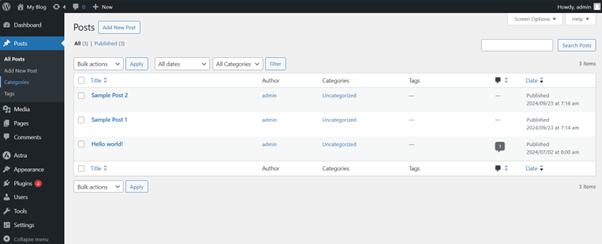
3. Hover over the category name and click Delete from the options below (Edit, Quick Edit, Delete, View).
4. Confirm deletion when prompted.
Reassigning Posts (if necessary)
If the category you are deleting has posts, WordPress will reassign them to the default category (usually Uncategorised). You can reassign posts to another category either individually or using the Bulk Edit feature.
Bulk Deleting Categories
To delete multiple categories at once:
- On the Categories page, check the boxes next to the categories you want to delete.
- Select Delete from the Bulk Actions dropdown menu.
- Click Apply.
Changing the Default Category
Before deleting a category, you may want to change the default category to ensure posts are reassigned correctly:
- Go to Settings > Writing in WordPress.
- Select a new default post category from the dropdown menu.
- Click Save Changes.
Using Plugins for Advanced Category Management
There are plugins available that can make managing categories easier, including bulk deletion of categories along with their associated posts.
SEO Considerations
Deleting categories can impact your SEO, especially if search engines have already indexed those pages. To avoid broken links, set up redirects for deleted categories. Plugins such as Redirection can assist with this.
Regular Maintenance
Regularly reviewing your categories keeps your site organized and ensures a better experience for visitors.
Logging into Your tandohost.co.za Account
- Go to the tandohost.co.za login page. Login - TandoHost
- Enter your email and password.
- Click Sign In.
Accessing WordPress via cPanel
- In your tandohost.co.za dashboard, under Product/Services, select your hosting plan, and click Login to Control Panel.
2. On the cPanel dashboard, choose WP Toolkit or WordPress Management.
- Alternatively, use the WordPress icon under Popular Applications.
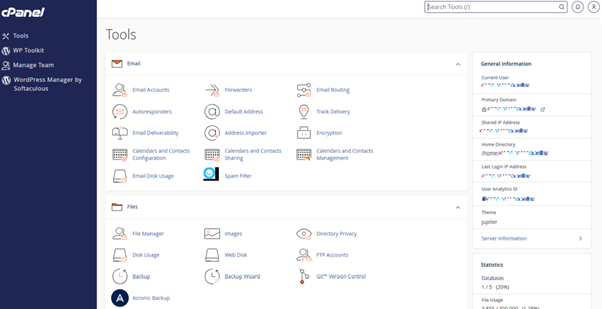
Accessing WordPress Online via cPanel
- Go to your cPanel login page.
- Enter your email and account password, then click Log In.
3. Access WP Toolkit or WordPress Management on the cPanel dashboard to manage your site.

