
How to Delete a WordPress Theme: A Step-by-Step Guide
This guide, complementing our YouTube video linked below, walks you through the process of deleting a WordPress theme. Removing unused themes is simple yet important for keeping your website secure, organized, and running efficiently. Over time, you may accumulate multiple themes, especially if you enjoy experimenting with different designs.
However, unused themes can clutter your WordPress installation and even pose security risks. In this article, we’ll show you how to safely delete a theme, whether to tidy up your site, reduce vulnerabilities, or free up server space.
Note: Make sure you are logged into your WordPress Dashboard before proceeding.
How to Delete a WordPress Theme
Step 1: Log in to Your WordPress Dashboard
- Visit yourwebsite.com/wp-admin and enter your username and password.
- In the left-hand menu, hover over Appearance and click Themes.
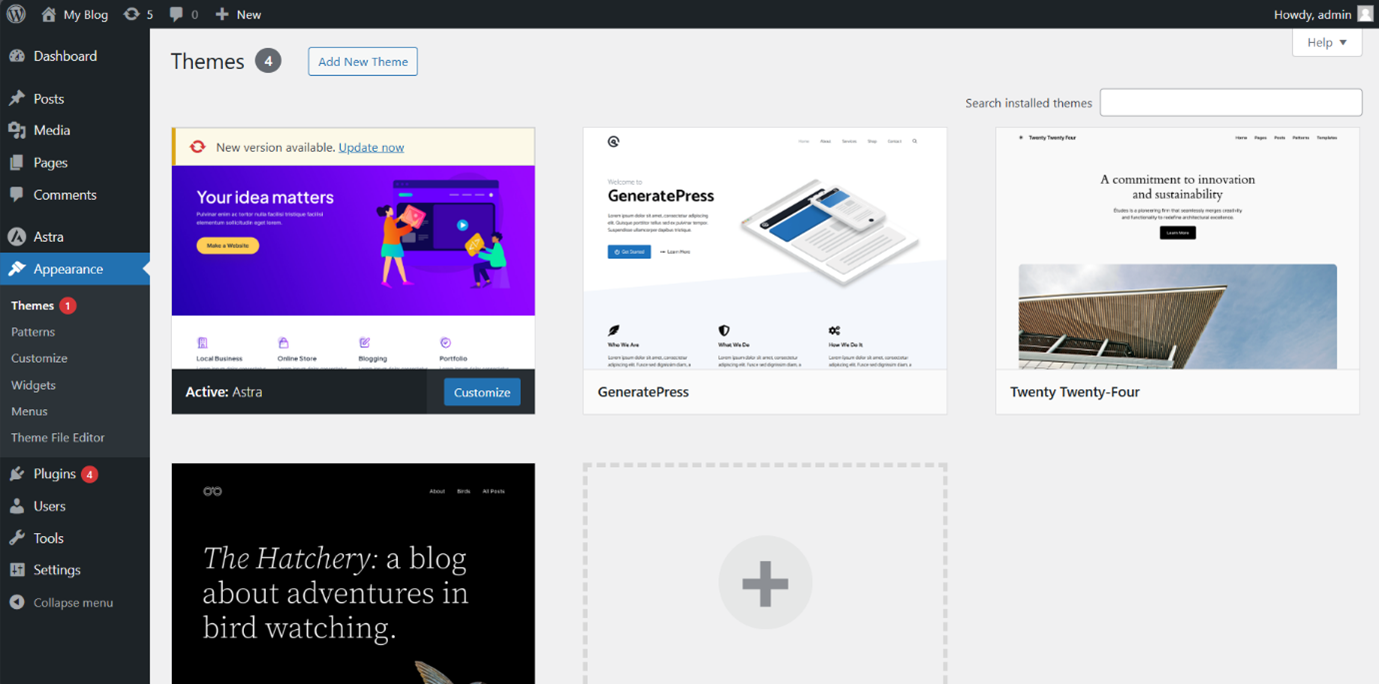
Step 2: Choose the Theme to Delete
- Do not delete the active theme — it’s marked Active on the Themes page.
- Hover over the theme you want to remove and click Theme Details.
Step 3: Delete the Theme
- In the bottom-right corner of the Theme Details window, click Delete.
- Confirm the deletion by clicking OK when prompted.
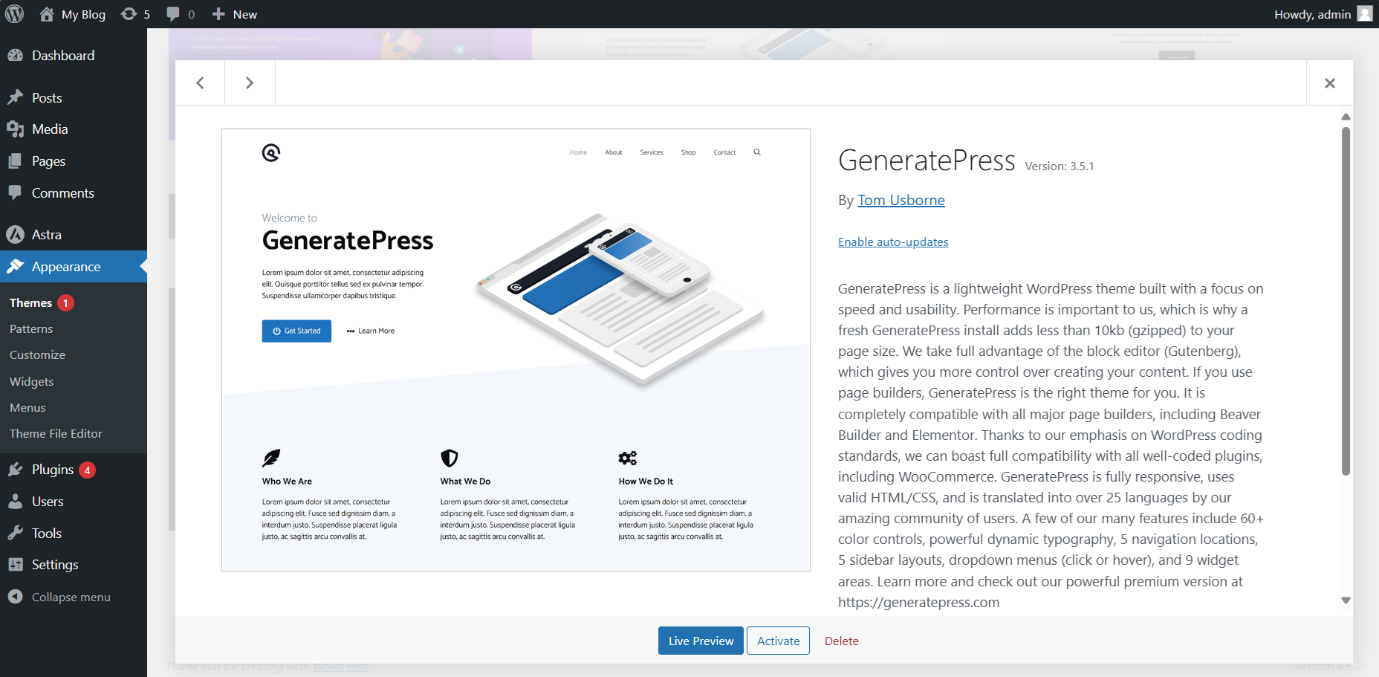
Step 4: Verify Deletion
- You will be redirected back to the Themes page. Ensure the theme no longer appears.
- Visit your website to confirm everything is functioning correctly with the active theme.
Additional Tips & Precautions
- Backup Your Site: Always back up your website before deleting any themes.
- Remove Unused Themes: Regularly clean up unused themes to reduce clutter and security risks.
- Update Active Themes: Keep your active theme up to date to benefit from new features and security updates.
- Child Themes: If you use a child theme, don’t delete the parent theme unless it’s no longer needed.
- Check for Dependencies: Some plugins or customizations might rely on certain themes; verify these won’t break.
- Test After Deletion: Ensure all site functionality remains intact after deleting a theme.
- Document Changes: Keep a record of modifications and deleted themes for troubleshooting and future reference.
Logging into Your tandohost.co.za Account
- Go to the tandohost.co.za login page. Login - TandoHost
- Enter your email and password, then click Sign In.
Accessing WordPress via cPanel from tandohost.co.za
- In the Dashboard, under Product/Services and choose your hosting plan (example: WordPressHosting).
- Click Login to Control Panel.
3. On the cPanel dashboard, select WP Toolkit, or WordPress Management if WordPress is not yet installed.
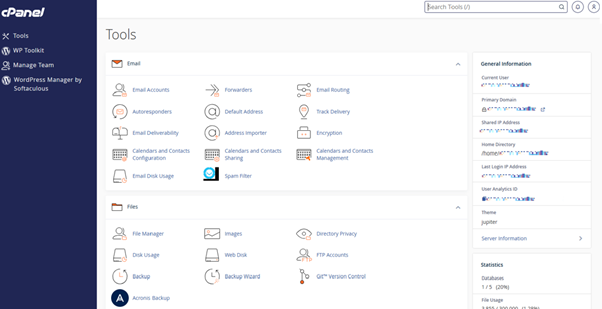
4. A WordPress icon is also available under the Popular Applications section.
Accessing WordPress Online via cPanel
- Visit your cPanel login page.
- Enter your email and account password, then click Log In.
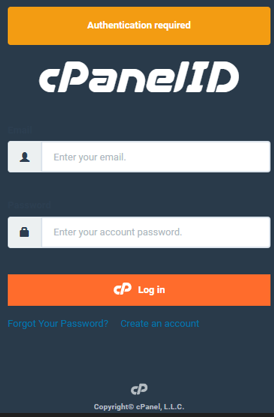
3. From the cPanel Dashboard, select WP Toolkit (or WordPress Management) to access your site.

